


An ESXi host drops every VM on it and prints a full purple screen of cryptic text. The Purple Screen of Death (PSOD) is VMware’s equivalent of a Windows blue screen: the VMkernel hit a fault it could not recover from and halted to protect data. It looks catastrophic, but the screen itself tells you almost exactly what went wrong — the trick is knowing which three lines to read. This guide shows you how to decode a PSOD, the handful of causes behind nearly all of them, how to capture the coredump, and how to recover the host and stop it recurring.
#PF Exception 14 with a driver name is almost always a bad driver; a LINT1/NMI is hardware. Photograph the whole screen before you reboot.Contents
What a PSOD actually is
ESXi runs a small, purpose-built kernel called the VMkernel directly on the hardware. When the VMkernel detects an unrecoverable condition — an invalid memory access, a hardware non-maskable interrupt, an internal consistency failure — it stops everything and writes the diagnostic purple screen rather than risk corrupting VM data by continuing. Every VM on that host stops instantly. A PSOD is therefore a symptom, not the disease: the cause is overwhelmingly a faulty driver, failing hardware, or a resource the kernel ran out of, and only very rarely an ESXi bug itself.
The five things to read on the screen
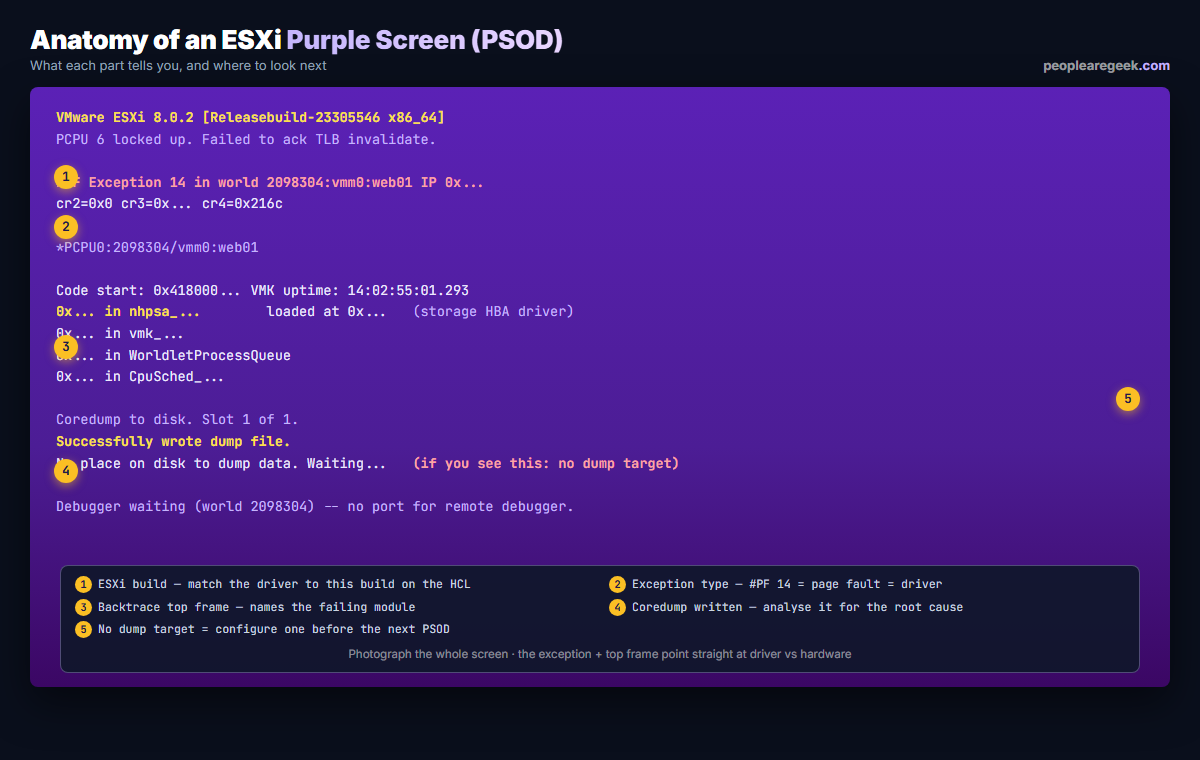
Before you touch anything, photograph the whole screen. Then read these five parts (numbered on Figure 1):
- The ESXi build at the top. You need it to match the failing driver against the VMware Compatibility Guide for the exact build.
- The exception type.
#PF Exception 14is a page fault — a driver dereferenced bad memory.LINT1 motherboard interruptorNMIis a hardware-raised fault. A VMFS or heap message points at storage. - The top of the backtrace. The first named module is usually the culprit — a NIC driver, a storage HBA driver, a multipathing plugin.
- The coredump status. “Successfully wrote dump file” means you have a dump to analyse. “No place on disk to dump data” means no dump target is configured.
- Whether a dump target exists. If not, fix that first so the next PSOD is analysable.
The causes behind almost every PSOD
| Signature on screen | Most likely cause |
|---|---|
#PF Exception 14 + a driver name | Faulty or mismatched driver (NIC, HBA, RAID) — update or roll back the driver to the HCL version |
LINT1 / NMI | Hardware: bad memory, failing CPU or PCIe card — check the server hardware logs |
| VMFS / heap exhaustion | Storage heap ran out — raise the heap setting or upgrade ESXi; rebalance large VMDKs |
PCPU N locked up | A CPU stuck in a driver/firmware spinlock — usually firmware; update BIOS and the implicated driver |
| Repeated after a recent change | The driver, firmware or VIB you just installed — roll it back |
The single most common real-world PSOD is a network or storage driver that does not match the ESXi build, often after an upgrade where the inbox driver changed. The second is hardware, particularly memory. Identify which family you are in from the exception line and you have already done most of the diagnosis.
Capture the coredump before you reboot
The coredump is what lets you (or VMware support) find the exact faulting instruction. Confirm a dump target exists so the host can write one:
esxcli system coredump partition list
esxcli system coredump partition get
# if none is set, configure the local diagnostic partition:
esxcli system coredump partition set --enable true --smart
# or send dumps to a network collector:
esxcli system coredump network set --interface-name vmk0 \
  --server-ipv4 10.0.0.50 --server-port 6500 --enable true
If a dump was written, retrieve and package the logs after recovery with vm-support, which bundles the dump and the relevant logs for analysis or a support ticket.
Recover the host
A PSOD’d host is frozen, so recovery means a controlled restart and then root-cause work:
- Restart the host (power-cycle via the out-of-band controller such as iLO or iDRAC, or physically). VMs restart on it, or HA restarts them elsewhere if configured.
- Check it came back clean:
esxcli system version getand review/var/log/vmkernel.logfor the events just before the crash. - Act on the cause: update or roll back the driver named in the backtrace (
esxcli software vib list | grep <driver>), update firmware for a hardware fault, or raise a setting for a heap exhaustion. - If it recurs immediately, put the host in maintenance mode and evacuate VMs while you work, so a crash loop does not keep taking workloads down.
Stop it happening again
- Stick to the HCL. Only run drivers and firmware versions VMware lists as compatible with your exact ESXi build. Most PSODs trace back to a mismatch here.
- Always have a dump target. A PSOD with no coredump is a wasted outage because you cannot diagnose it. Configure a partition or a network dump collector on every host.
- Update firmware and drivers together using the server vendor’s ESXi custom image or addon, which keeps the pair in sync.
- Test memory on any host that PSODs with a hardware NMI before returning it to production.
- Keep ESXi current. Newer builds raise heap limits and fix known driver-interaction bugs.
FAQ
Is a PSOD always a VMware bug?
Almost never. The overwhelming majority are caused by a third-party driver that does not match the ESXi build, or by failing hardware such as memory. ESXi halts to protect data; the real fault is named on the screen. Treat it as a driver or hardware investigation first.
What does #PF Exception 14 mean on a PSOD?
It is a page fault: a kernel module accessed memory it should not have. This is the classic signature of a buggy or mismatched driver. The module named at the top of the backtrace is the one to update or roll back to the version on the VMware Compatibility Guide.
How do I find the cause if there is no coredump?
Without a dump you rely on the photograph of the screen (exception type plus the top backtrace frame) and /var/log/vmkernel.log from before the crash. Configure a coredump partition or network collector immediately so the next occurrence is fully analysable.
Can I recover the VMs that were running on the host?
The VMs stopped uncleanly when the host halted, like a power loss. After the host restarts they power back on (or vSphere HA restarts them on another host if configured), recovering to their last written state. There is no data loss beyond unwritten in-flight I/O, which is why HA plus good storage matters.
What is the difference between a PSOD and a host showing Not Responding?
A PSOD is a hard kernel halt with a purple screen at the console. “Not responding” in vCenter usually means the host is still running but its management agent lost contact, which is a far less severe, separately fixable problem. Check the physical or remote console to tell them apart.
How do I configure a coredump target on ESXi?
For a local dump, run esxcli system coredump partition set --enable true --smart. For a centralised collector, use esxcli system coredump network set with the collector IP and port. Verify with esxcli system coredump partition get. Do this on every host before you need it.
Hit another VMware error?
Search any ESXi or vCenter code or message and get the cause plus the exact resolution steps in one searchable reference.


