

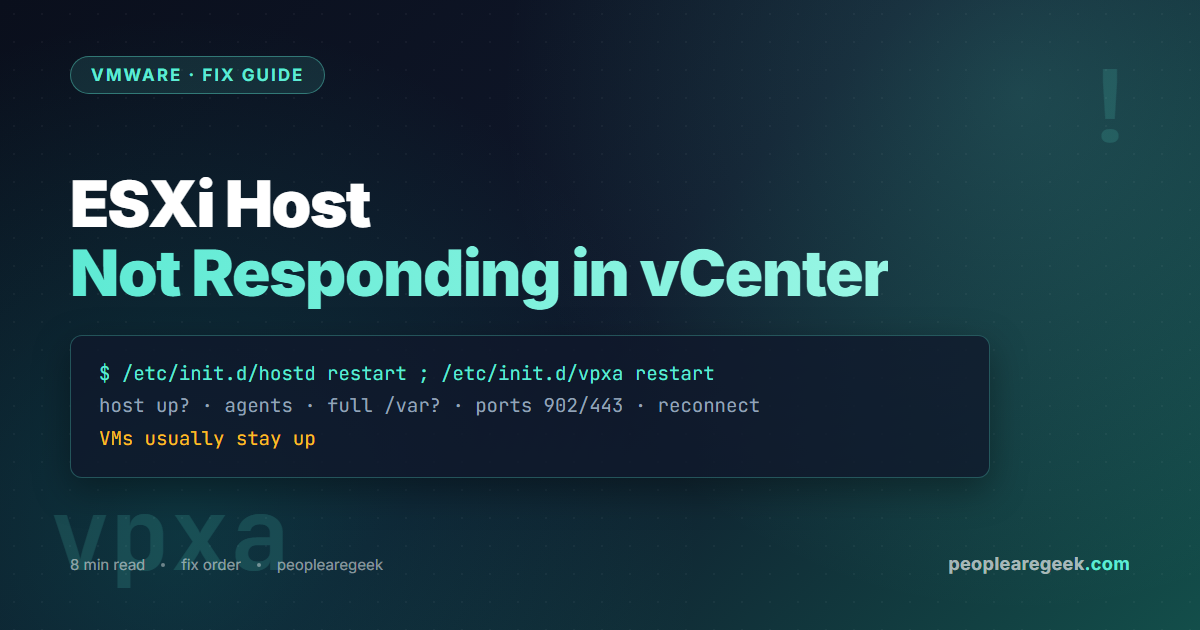
An ESXi host suddenly shows Not Responding (or Disconnected) in vCenter, greyed out with its VMs in an unknown state. The instinct is to panic about a host crash, but in the large majority of cases the host is still running fine and serving its VMs — it is the management connection to vCenter that broke. This guide gives you the fix order that resolves it fastest, from restarting the agents to reconnecting the host, plus how to tell this apart from a real host failure.
Contents
What “Not Responding” actually means
vCenter manages each ESXi host through an agent called vpxa, which in turn talks to the host’s own management daemon, hostd. vCenter expects a regular heartbeat. When that heartbeat stops — because an agent crashed, the management network dropped, or the host’s log partition filled up and stalled hostd — vCenter marks the host Not Responding and the VMs as unknown. Crucially, the VMs usually keep running the whole time; only management visibility is lost. That is why the fix is almost always about restoring the agent or the network, not about recovering a crashed host.
Step 1: confirm the host is really up
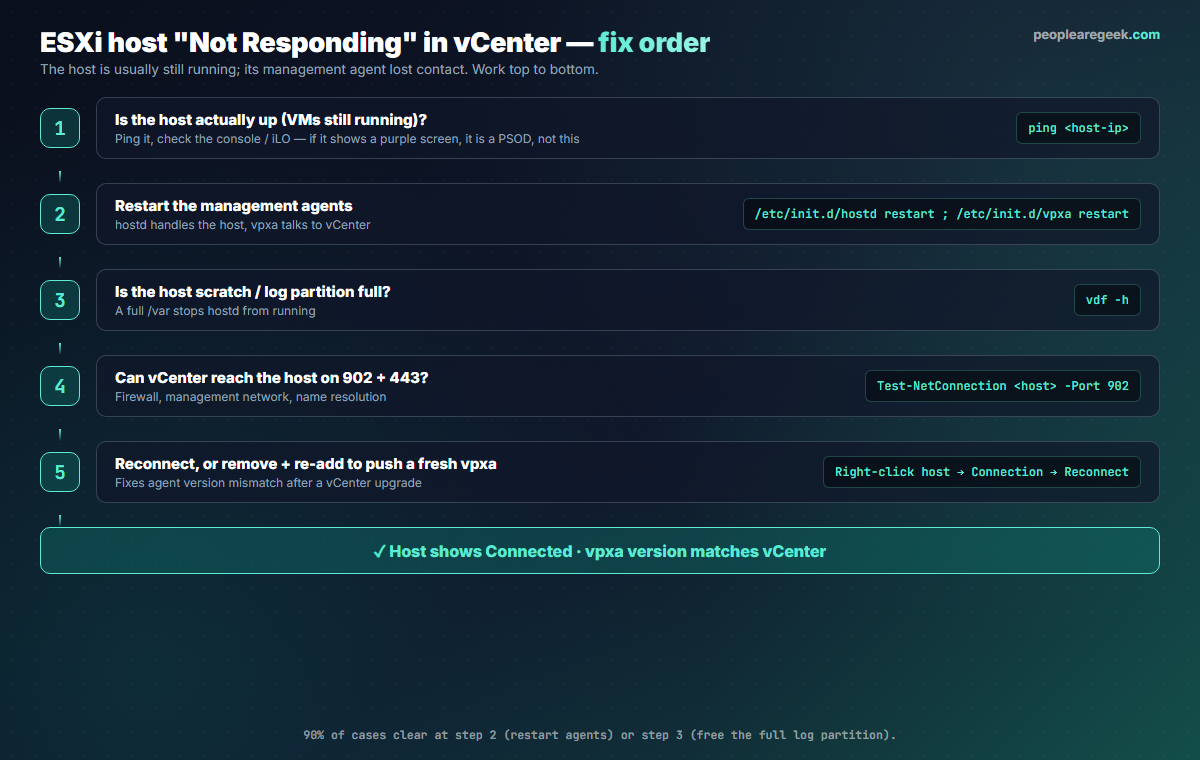
First rule out an actual host failure. Ping the host management IP, and look at the physical console or the out-of-band controller (iLO, iDRAC, IPMI). If the console shows a purple screen, this is not a management issue at all — it is a PSOD and you should follow the purple-screen recovery instead. If the host responds to ping and the console shows the normal yellow-and-grey DCUI, the host is up and you are dealing with a management-agent or network problem, so continue.
Step 2: restart the management agents
This single step fixes the majority of cases. Get to the host shell — SSH if it is enabled, or the DCUI (press F2 at the console, then Troubleshooting Options > Restart Management Agents) — and restart hostd and vpxa:
/etc/init.d/hostd restart
/etc/init.d/vpxa restart
# or restart all management services at once:
services.sh restart
Give it a minute, then watch the host in vCenter: it usually returns to Connected on its own. From the DCUI, the Restart Management Agents menu option does the same thing without SSH.
Step 3: check the log partition is not full
If the agents will not start or immediately die again, the most common reason is a full scratch or log partition. hostd cannot run without space to write. Check it:
vdf -h
# look at /var/log and the scratch location for 100% usage
If a partition is full, clear or rotate the oversized logs, and check what filled it (a verbose third-party agent or a looping error). On hosts that boot from small USB/SD media with no proper scratch, configure a persistent scratch location on a datastore so logs do not fill the tiny boot device.
Step 4: check the network path to vCenter
If the host is up and its agents run but vCenter still cannot see it, the management path is broken. Confirm vCenter can reach the host on the ports it uses:
- TCP 902 (heartbeat and migration) and TCP 443 (management API) must be open both ways between vCenter and the host.
- From a machine near vCenter:
Test-NetConnection <host-ip> -Port 902. - Confirm forward and reverse DNS for the host resolve correctly; vCenter is sensitive to name mismatches.
- Verify a recent network change (a vSwitch, VLAN or VMkernel edit) did not cut the management VMkernel. If it did, fix it from the DCUI Configure Management Network.
Step 5: reconnect or re-add the host
With the host healthy and reachable, tell vCenter to re-establish the link:
- Right-click the host in vCenter and choose Connection > Reconnect.
- If reconnect fails with an agent error, the vpxa version may mismatch after a vCenter upgrade. Remove the host from inventory (right-click > Remove from Inventory, which does not touch the VMs) and add it back; vCenter pushes a fresh, matching vpxa.
- If the host had a certificate or thumbprint mismatch after an IP or name change, accept the new thumbprint on reconnect.
FAQ
Are my VMs down while the host shows Not Responding?
Usually no. The VMs keep running; only vCenter’s management view is lost. You often cannot see or control them from vCenter until the host reconnects, but they continue serving traffic. Confirm by pinging a VM or its service directly.
What is the quickest fix for a host that is Not Responding?
Restart the management agents: from the DCUI choose Troubleshooting Options then Restart Management Agents, or over SSH run /etc/init.d/hostd restart and /etc/init.d/vpxa restart. This resolves the majority of cases within a minute.
Why do the management agents keep crashing?
The most common cause is a full scratch or log partition, which stops hostd. Run vdf -h and clear any partition at 100%. On USB/SD-boot hosts, set a persistent scratch location on a datastore so logs never fill the small boot device.
Which ports does vCenter use to manage a host?
TCP 902 for the heartbeat and migration traffic, and TCP 443 for the management API. Both must be open in each direction between vCenter and the host. A firewall change that blocks either will make the host appear Not Responding.
Reconnect fails with a vpxa or agent error. What now?
This usually means the host agent version no longer matches vCenter, often after a vCenter upgrade. Remove the host from inventory (the VMs are untouched) and add it back, which installs a fresh matching vpxa agent on the host.
How is this different from a purple screen (PSOD)?
A PSOD is a hard kernel halt: the console shows a purple screen and every VM stops. Not Responding means the host is still running but lost its management link to vCenter. Always check the console first: a purple screen sends you to PSOD recovery, a normal DCUI sends you through these steps.
Search any VMware error
Cause plus step-by-step resolution for PSOD, APD/PDL, vMotion, snapshots, datastore locks and more, in one searchable reference.


