Ubuntu 24.04 server hardening starts the moment a fresh box boots, because it boots fine and it is also wide open, which nobody tells you. So here is the run-through I do on every new 24.04 LTS VPS before I trust it with anything that matters. SSH locked to keys on a port the scanners are not camped on. UFW with the fewest rules I can get away with. fail2ban swatting the brute-force bots, unattended security updates ticking over, AppArmor actually enforcing instead of just sulking in complain mode, and auditd so that six months from now I can answer who touched what without guessing. It is 30 commands you paste in order, and after each one a check that proves it took.
The short answer
Harden a fresh Ubuntu 24.04 LTS VPS in one pass: keys-only SSH on a custom port
(PermitRootLogin no, PasswordAuthentication no), ufw default deny incoming,
fail2ban on the SSH jail, unattended-upgrades for security patches, aa-enforce
on every AppArmor profile, and auditd watching the files that matter. After each
command you run the check that proves it took.
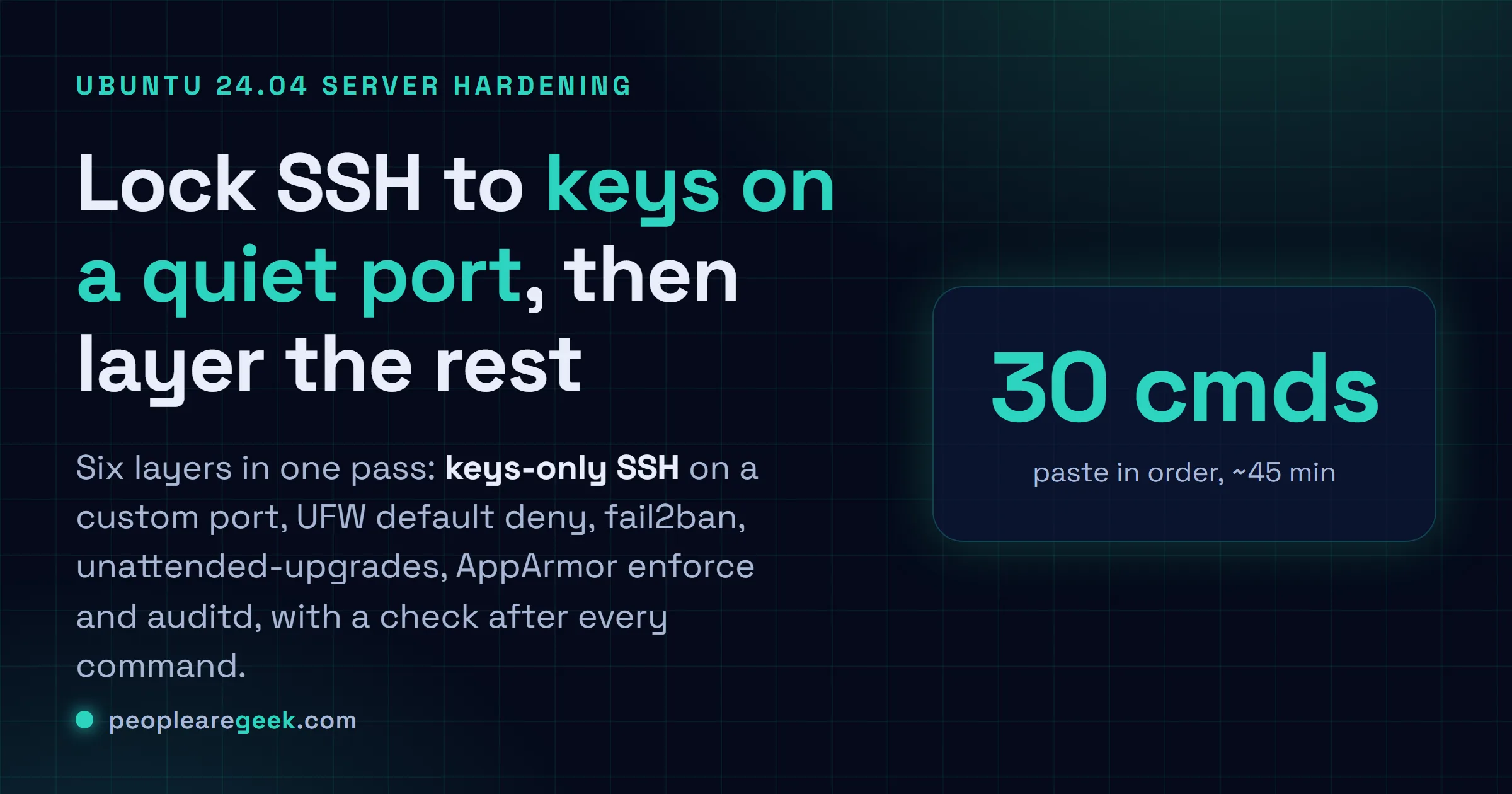
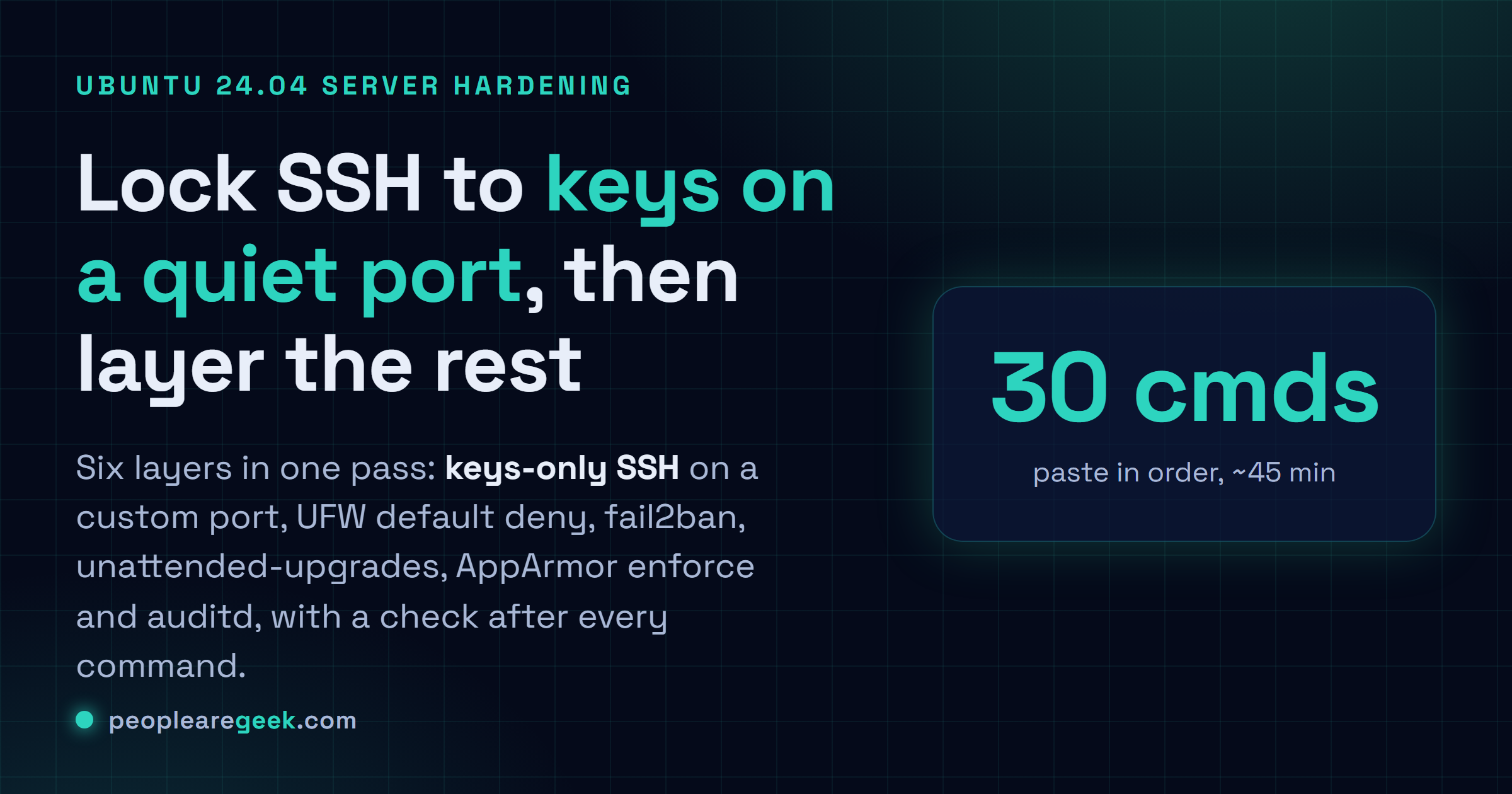
A fresh Ubuntu box boots fine. It's also wide open, which nobody tells you. So here's the run-through I do on every new 24.04 LTS VPS before I trust it with anything that matters. SSH locked to keys on a port the scanners aren't camped on. UFW with the fewest rules I can get away with. fail2ban swatting the brute-force bots, unattended security updates ticking over, AppArmor actually enforcing instead of just sulking in complain mode, and auditd so that six months from now I can answer "who touched what" without guessing. It's 30 commands. You paste them in order, and after each one I hand you the check that proves it took. Block out 30 to 45 minutes. By the end, the endless background hum of automated attacks just bounces off.
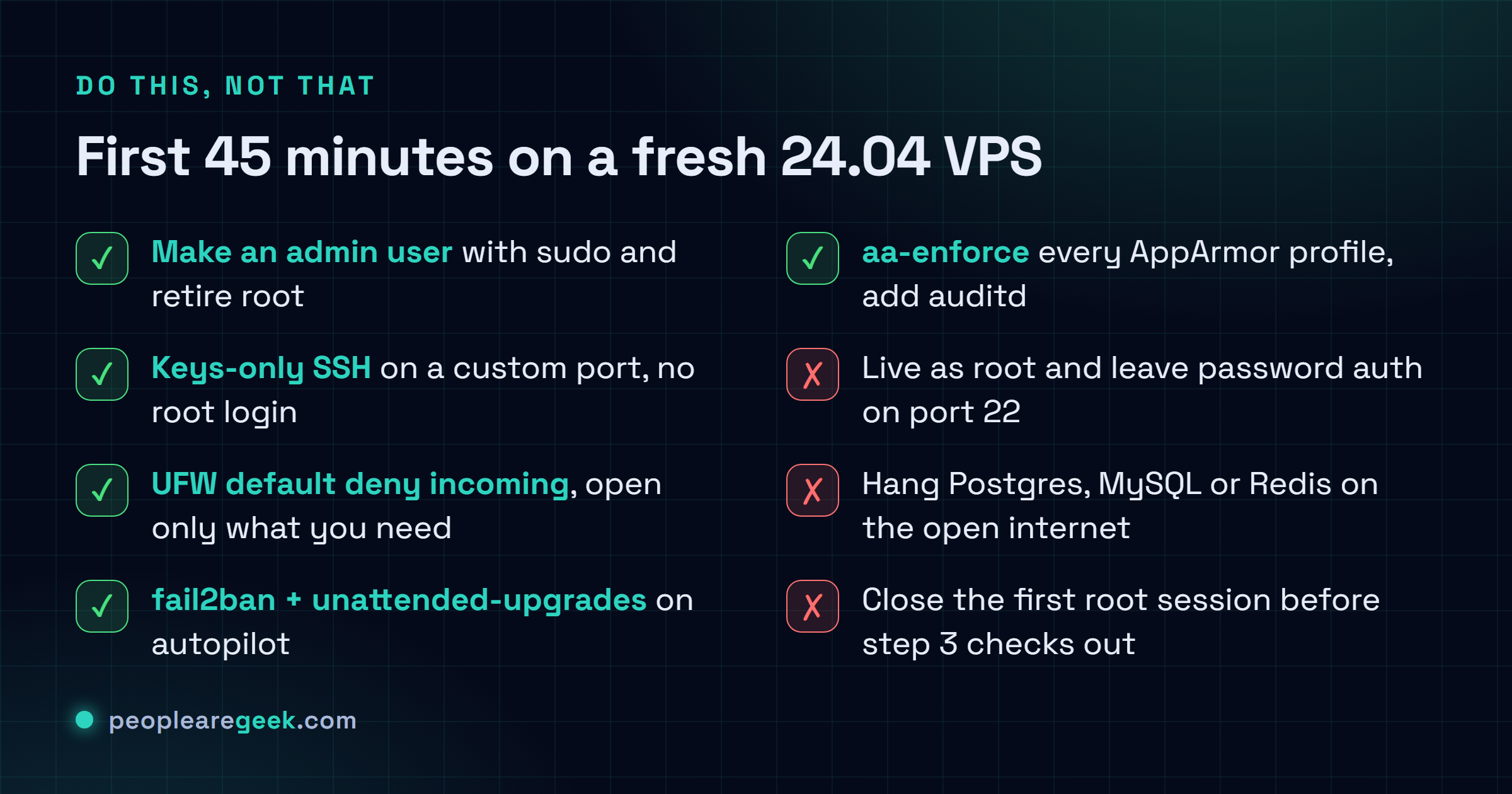
Before you start. I'm assuming a fresh Ubuntu 24.04 LTS VPS (OVH, Hetzner, Scaleway, Contabo, AWS Lightsail) and you're driving the whole thing over SSH from your laptop. Do not close your SSH session until step 3 is done. I locked myself out exactly this way once. Fat-fingered sshd_config, no second terminal open, and that was a fun hour on the rescue console. Keep that first session breathing. It's your lifeline.

First root access and admin user creation
Log in as root, just this once. Then build yourself a plain user for the day-to-day and drop it in the sudo group. Living as root full-time? That's how one stray typo wipes the wrong thing while you're still reaching for the coffee.
# On your local machine
ssh root@YOUR_IP

# On the server (as root)
adduser admin           # create the admin user
usermod -aG sudo admin  # add to sudo group
mkdir -p /home/admin/.ssh
chmod 700 /home/admin/.ssh
cp /root/.ssh/authorized_keys /home/admin/.ssh/
chown -R admin:admin /home/admin/.ssh
Verify it took:
su - admin
sudo whoami   # must print: root
exit
Initial system updates
A brand-new server usually shows up with 20 to 60 packages already stale. Patch the lot before you install a single thing of your own. You don't want to build on top of holes that already have public exploits.
apt update
apt upgrade -y
apt dist-upgrade -y
apt autoremove -y
apt autoclean
Verify it took:
apt list --upgradable
# Must print: Listing... Done (and nothing else)
See a "Pending kernel upgrade" message? Reboot now (reboot), wait for it to come back, then carry on. Soldiering ahead on the old kernel just stores up a weird problem for later.
SSH hardening (keys, custom port, no root login)
This is the big one. It's also the step that'll lock you out cold if you rush it. A few edits to /etc/ssh/sshd_config: kill direct root login, switch password auth off entirely so it's keys or nothing, then move SSH off port 22 to somewhere the scanners aren't hammering around the clock.
# Backup the config before editing
cp /etc/ssh/sshd_config /etc/ssh/sshd_config.bak

# Edit the config
nano /etc/ssh/sshd_config

# Lines to set or add:
Port 2222                           # custom port (pick any 1024-65535)
PermitRootLogin no                  # no more direct root login
PasswordAuthentication no           # SSH keys only
PubkeyAuthentication yes
MaxAuthTries 3                      # 3 attempts max per connection
ClientAliveInterval 300             # auto-disconnect after 5 min
ClientAliveCountMax 2
LoginGraceTime 30
AllowUsers admin                    # restrict to the admin user only
Validate the syntax before you restart sshd. Always. One bad line in that file and the restart kicks you off with no way back in:
sshd -t
# No output means OK; if there is one, fix it before continuing

# Restart SSH
systemctl restart ssh
Critical. Open a brand-new SSH session on the new port and prove it actually logs you in before you close the root one you're sitting in. If the new session bounces, the old one is still right there to roll back the change. That open terminal is the only thing standing between you and a rescue console at 2am.
ssh admin@YOUR_IP -p 2222 Verify it took:
whoami   # must print: admin
sudo -i  # must prompt for your admin password and elevate to root
UFW firewall with minimal rules
UFW is just a friendlier face glued onto nftables/iptables. It's the one I reach for on nearly every box. The whole idea fits in one breath: slam the door on everything inbound, then crack open only the few ports you genuinely need, one at a time, by hand.
apt install -y ufw
ufw default deny incoming
ufw default allow outgoing

# Open the custom SSH port (mandatory before enabling)
ufw allow 2222/tcp comment 'SSH custom port'

# Open application ports as needed
ufw allow 80/tcp comment 'HTTP'
ufw allow 443/tcp comment 'HTTPS'

# Enable the firewall
ufw enable     # answer y
Verify it took:
ufw status verbose
# Must show "Status: active" and the rules above
Database behind the app? Postgres, MySQL, a Redis cache, whatever it is. Never hang 5432, 3306 or 6379 out on the open internet. An unauthenticated Redis goes from "public" to "owned" in hours, sometimes less, and I've watched it happen. Tunnel into it over SSH from the app side, or wire up a WireGuard link. Just keep it off the public interface.
fail2ban against SSH brute-force
Keys-only SSH doesn't stop the bots from trying. They keep knocking by the thousand, and every rejected attempt still burns a sliver of CPU while it junks up your logs. fail2ban watches for any IP that fails too many times inside a window, then drops a firewall ban on it without you lifting a finger. You set the thresholds once and mostly never look again.
apt install -y fail2ban

# Create the local config (jail.local takes precedence over jail.conf)
cat > /etc/fail2ban/jail.local <<'EOF'
[DEFAULT]
bantime = 3600
findtime = 600
maxretry = 3
ignoreip = 127.0.0.1/8 ::1

[sshd]
enabled = true
port = 2222
backend = systemd
EOF

systemctl enable --now fail2ban
Verify it took:
fail2ban-client status sshd
# Must show "Currently failed", "Total failed" and "Currently banned"
Banned your own IP after fumbling the login a few times? Happens to all of us. Spring it loose with fail2ban-client set sshd unbanip 1.2.3.4.
Automatic updates (unattended-upgrades)
Ubuntu ships security fixes a couple of times a week, and nobody sane is SSHing in to run apt upgrade by hand every other day. So you let it patch the security stuff on its own while the big distro upgrades, the kind that genuinely break things, stay off the table. Honestly, I think this is the highest payoff-per-minute thing on the whole list. I might be talking myself into it because it's so little effort, but the math has held up for me across years of boxes.
apt install -y unattended-upgrades apt-listchanges

# Enable Ubuntu's default config
dpkg-reconfigure -plow unattended-upgrades
# Answer Yes to the question

# Verify the config file
nano /etc/apt/apt.conf.d/50unattended-upgrades
Open 50unattended-upgrades and double-check the security sources are really switched on:
Unattended-Upgrade::Allowed-Origins {
    "${distro_id}:${distro_codename}";
    "${distro_id}:${distro_codename}-security";
    "${distro_id}ESMApps:${distro_codename}-apps-security";
    "${distro_id}ESM:${distro_codename}-infra-security";
};
Unattended-Upgrade::Automatic-Reboot "true";
Unattended-Upgrade::Automatic-Reboot-Time "03:00";
Verify it took:
unattended-upgrade --dry-run --debug 2>&1 | head -20
# Must list the packages that would be updated
AppArmor in enforce mode
Mandatory Access Control on Ubuntu goes through AppArmor. Each service gets a profile spelling out exactly which files and syscalls it may touch, and anything that strays outside the box gets slapped down. It ships on 24.04 and it's already running. The catch nobody mentions: a chunk of those profiles sit in "complain" mode, which logs the violation and then shrugs and lets it through anyway. So we flip them to "enforce" and give them teeth.
apt install -y apparmor apparmor-utils apparmor-profiles apparmor-profiles-extra

# Current status
aa-status

# Switch all profiles to enforce
aa-enforce /etc/apparmor.d/*
Verify it took:
aa-status | head -5
# The line "profiles are in enforce mode" must show a number > 30
Something falls over the moment enforce kicks in? Don't go ripping the whole subsystem out, that's overkill. Pull up journalctl -u apparmor and it'll tell you precisely what got denied. From there you either patch that one profile or, if you're in a hurry, drop just that profile back to complain while you sort it: aa-complain /etc/apparmor.d/usr.sbin.service-name.
Audit logs with auditd
auditd is the flight recorder. It quietly logs the sensitive stuff: reads of critical files and every sudo command, plus the config changes you'd otherwise never catch. You won't give it a second thought until the day someone asks "who edited /etc/passwd yesterday at 2pm?" and instead of shrugging, you just pull the exact answer.
apt install -y auditd audispd-plugins

# Minimal rules: watch critical files
cat > /etc/audit/rules.d/hardening.rules <<'EOF'
# User account modifications
-w /etc/passwd -p wa -k user_modification
-w /etc/shadow -p wa -k user_modification
-w /etc/group -p wa -k user_modification
-w /etc/sudoers -p wa -k sudoers_modification
-w /etc/sudoers.d/ -p wa -k sudoers_modification

# SSH modifications
-w /etc/ssh/sshd_config -p wa -k ssh_config

# Abnormal network egress
-a always,exit -F arch=b64 -S socket -F a0=10 -k network_socket

# Lock the rules (no modification without reboot)
-e 2
EOF

systemctl enable --now auditd
systemctl restart auditd
Verify it took:
auditctl -l | head
# Must list the rules above
Need to read back what happened? ausearch -k user_modification pulls the events by tag. Or aureport -au if you just want the authentication summary.
Time synchronisation and NTP
People skip this one and then spend an afternoon baffled about why nothing works. Let the clock drift past a few seconds and TLS certs suddenly read as invalid, so your own outbound HTTPS calls bounce. On top of that, trying to line up these logs against your other machines turns into a guessing game. Good news: Ubuntu 24.04 already runs systemd-timesyncd, so this is really just pointing it at the right zone and confirming it's awake.
timedatectl set-timezone Europe/Paris   # or your time zone
timedatectl set-ntp true

# Verify
timedatectl status
Verify it took:
timedatectl status | grep -E "(synchronized|NTP)"
# Must show "System clock synchronized: yes" and "NTP service: active"
Final verification and snapshot
Before you sign off on this box as production-ready, fire the whole batch at once and actually read the output, top to bottom:
# Consolidated checks (";" separator so everything runs even if one command fails)
echo "=== SSH ==="                  ; grep -E "^(Port|PermitRoot|PasswordAuth)" /etc/ssh/sshd_config
echo "=== UFW ==="                  ; ufw status numbered | head -10
echo "=== fail2ban ==="             ; fail2ban-client status sshd
echo "=== unattended-upgrades ===" ; systemctl is-active unattended-upgrades
echo "=== AppArmor ==="             ; aa-status | head -3
echo "=== auditd ==="               ; systemctl is-active auditd
echo "=== Updates ==="              ; apt list --upgradable 2>/dev/null | wc -l
echo "=== Uptime ==="               ; uptime
Once every line reads the way it should, go grab a server snapshot from your provider (OVH calls it "Backup snapshot", Hetzner just "Snapshot", AWS "AMI", Scaleway "Snapshot" again). Two minutes, tops. What you get back is a clean, known-good image to roll to the day you inevitably break something down the road. I take one right here, every single time.
And if this box actually matters in production, this isn't the finish line. Bolt on uptime monitoring (SecurityWatch or UptimeRobot) plus something that keeps eyes on the app and the host underneath it (Netdata, Grafana Cloud Free, or Prometheus + node_exporter). Harden a server and then never look at it again, and you'll learn it died from an angry user, days after the fact.
Routine maintenance after hardening
Nobody wants to hear this part: all of it rots if you walk away. Here's the rhythm I keep on a 24.04 LTS box in 2026. Every week, a quick glance at fail2ban-client status sshd and journalctl -p err -b. Every month, check aa-status, ufw status and apt list --upgradable. Every quarter, eyeball /etc/passwd for users you don't recognise. Skim /etc/cron.d/ for jobs you never scheduled. Run last -n 50 and look hard at any login that feels off. Anything weird on that list isn't a "remind me next month." It's a "drop what I'm doing and dig in today."
Sources and further reading
Frequently asked questions
Why change the SSH port if I am already using keys?
It is not one or the other. The port move stacks on top of your keys, it does not stand in for them. Bots sweeping the whole IPv4 range fling something like 90 percent of their attempts straight at port 22, so kicking SSH up to a high port drags my logs from ten thousand failed hits a day down to a handful, and sshd quits burning cycles saying no. Is it security through obscurity? Yeah, totally. But bolted onto keys it costs me nothing and it quietly works, so on it goes every time.
UFW or nftables directly, which to choose?
UFW, for pretty much everything. The config reads clean and the syntax is genuinely hard to fumble, and that covers a normal app server with room to spare. Go down to raw nftables only when you truly need the fancy stuff UFW cannot express, like port knocking or GeoIP filtering or really tight rate limiting. And honestly you do not have to choose: drop raw rules into /etc/ufw/before.rules and you extend UFW without tearing it out.
Can automatic updates break my server?
It can. It very rarely does. Out of the box unattended-upgrades only pulls from the -security sources, so you are getting critical patches and none of the big version jumps that actually wreck things. On an LTS the odds of it biting you are genuinely tiny. The one knob I do turn on anything important: kill the automatic reboot and reboot the thing myself in a maintenance window, so it does not drop mid-afternoon with users still on it.
AppArmor or SELinux?
On Ubuntu? AppArmor, no contest. Could you swap in SELinux instead? Sure, technically. But you would rip out AppArmor and rewrite every profile from scratch first, and for most setups that is a mountain of effort that gets you nothing real. SELinux earns its keep over on the RHEL side of the world (CentOS Stream, Rocky, and friends), where it is the native choice and the whole distro is already wired around it. Just go with whatever your distro ships and expects.
How do I audit the server 6 months after hardening?
A handful of free tools carry this. Lynis (apt install lynis; lynis audit system) hands you a hardening score plus a punch list of everything that is still soft. OpenSCAP comes out only when you are in a regulated shop and need the paper trail. For sniffing out rootkits, that is chkrootkit and rkhunter. I run Lynis once a quarter, and the rootkit scanners stay in the drawer until something actually feels wrong.