


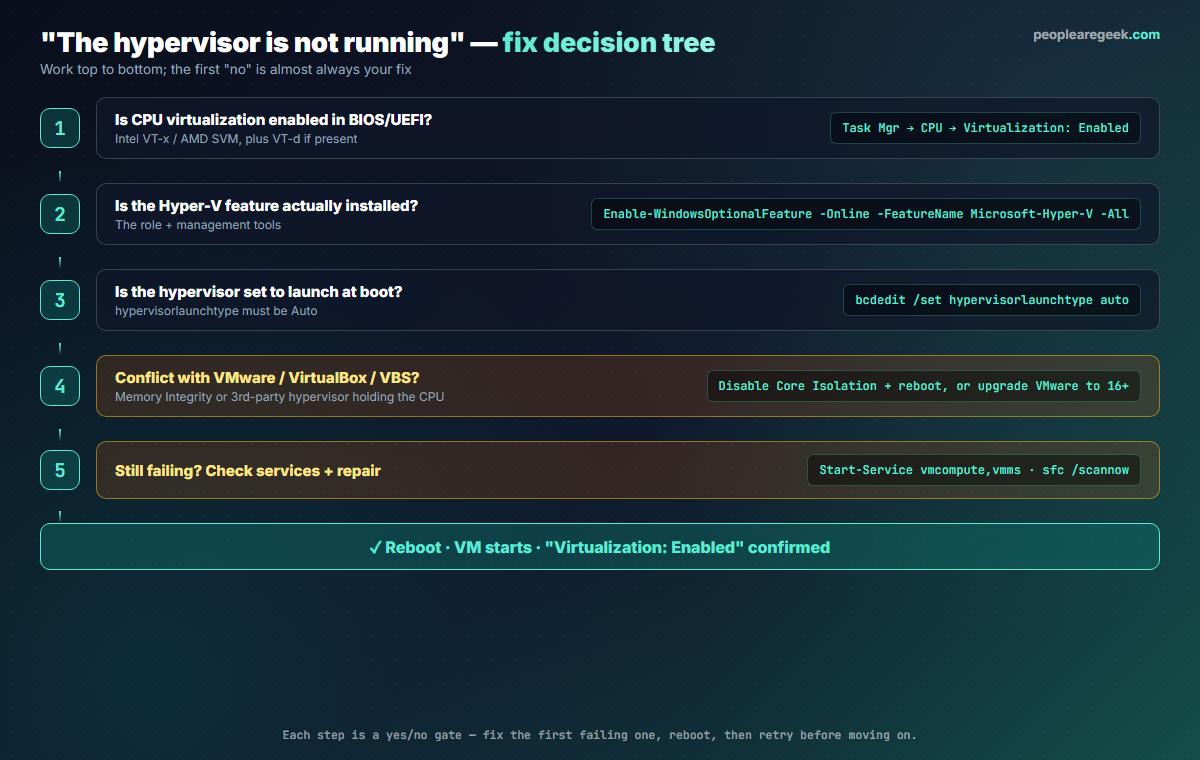
You try to start a VM and Hyper-V throws one of these: “The virtual machine could not be started because the hypervisor is not running”, or in older wording “Virtual machine could not be started because the hypervisor is not running”, sometimes alongside a Task Manager that shows Virtualization: Disabled. The message sounds dramatic but the cause is almost always one of five concrete things, and they fail in a predictable order. This guide walks them top to bottom so you fix the first failing gate, reboot, and move on — instead of randomly toggling settings.
Contents
What the error actually means
Hyper-V is a Type-1 hypervisor: a thin layer that must load before Windows, at boot, directly on the CPU’s virtualization extensions. “The hypervisor is not running” means that layer never started this boot. Either the CPU extensions are off, Windows was not told to launch the hypervisor, or something else (another hypervisor, or Virtualization-Based Security in a broken state) grabbed the extensions first. Nothing is corrupt in most cases — the hypervisor simply is not loaded, and a VM cannot start without it.
Gate 1: enable virtualization in BIOS/UEFI
This is the single most common cause, especially on a new machine or after a CMOS reset. Reboot into firmware setup (tap Del, F2, F10 or F1 during power-on, varies by vendor) and enable the virtualization extension:
- Intel: enable Intel Virtualization Technology (VT-x), and VT-d if listed.
- AMD: enable SVM Mode (Secure Virtual Machine).
Save and do a full shutdown, not just a restart — some firmware only applies the change on a cold boot. Back in Windows, confirm it took:
Or simply open Task Manager → Performance → CPU and look for Virtualization: Enabled in the bottom panel.
Gate 2: confirm the Hyper-V feature is installed
If virtualization is on but the role was never fully installed (or a half-finished install left it broken), the hypervisor will not load. Reinstall it cleanly from an elevated PowerShell:
Enable-WindowsOptionalFeature -Online -FeatureName Microsoft-Hyper-V -All
# reboot when prompted, then verify:
Get-WindowsOptionalFeature -Online -FeatureName Microsoft-Hyper-V-Hypervisor
The State should read Enabled. On Windows 11/10 Home, the Hyper-V role does not exist at all — you need Pro, Education or Enterprise. If you only need WSL2 or Docker, enable VirtualMachinePlatform instead, which provides the hypervisor without the full Hyper-V management stack.
Gate 3: set the hypervisor to launch at boot
Even with the feature installed, a boot-configuration flag controls whether the hypervisor actually launches. Tools that need the extensions for themselves (some games’ anti-cheat, older VMware, troubleshooting steps) often flip it off and forget to restore it. Check and fix it:
bcdedit /enum {current}
# look for: hypervisorlaunchtype   Auto
# if it says Off, turn it back on:
bcdedit /set hypervisorlaunchtype auto
Reboot after the change. This one command resolves a large share of “hypervisor is not running” reports where everything else is correct.
bcdedit returns “The integer data is not valid” or access denied, you are not in an elevated prompt. Run PowerShell or Command Prompt as Administrator.Gate 4: resolve VMware / VirtualBox / VBS conflicts
Only one component can own the CPU virtualization extensions at the hardware level. Three things commonly fight Hyper-V for them:
- VMware Workstation 15 or older cannot share the CPU with Hyper-V. Either upgrade to Workstation 16+, which uses the Windows Hypervisor Platform and coexists, or disable Hyper-V if you must keep the old VMware.
- VirtualBox below v6 behaves the same way; update it, since modern VirtualBox can run on the Hyper-V backend.
- Virtualization-Based Security (VBS) — Core Isolation / Memory Integrity / Credential Guard — uses the hypervisor too. Normally it coexists, but a half-enabled or policy-conflicted VBS state can stop your VMs. If you do not need it, turn off Core Isolation → Memory Integrity in Windows Security, reboot, and retest.
Note the trade-off: WSL2, Docker Desktop, the Windows Sandbox and Hyper-V all need the hypervisor. If you disable it for old VMware, you lose those too. The cleaner long-term fix is to modernise the conflicting software rather than disable Hyper-V.
Gate 5: services and system-file repair
If the first four gates pass and VMs still will not start, the management services may be stopped or the component store may be damaged. Bring the services up and repair the image:
Start-Service vmcompute
Start-Service vmms
Set-Service vmms -StartupType Automatic

# repair Windows component store if services refuse to start
DISM /Online /Cleanup-Image /RestoreHealth
sfc /scannow
As a last resort, remove and re-add the role to rebuild it: Disable-WindowsOptionalFeature -Online -FeatureName Microsoft-Hyper-V-All, reboot, then re-enable it. This rebuilds the WMI namespace and the hypervisor boot entry from scratch.
Verify the fix
After any change and a reboot, confirm the hypervisor is actually loaded before blaming Hyper-V again:
If HypervisorPresent is True, the layer is loaded and the original error is gone. If it is False after passing all five gates, recheck the BIOS — a firmware update can silently reset the virtualization toggle.
FAQ
Why did Hyper-V suddenly stop working after a Windows update?
A feature update can reset the hypervisorlaunchtype flag or re-enable a VBS feature that now conflicts. Run bcdedit /set hypervisorlaunchtype auto, reboot, and check Core Isolation. Firmware updates pushed through Windows Update can also reset the BIOS virtualization toggle.
Task Manager shows “Virtualization: Enabled” but I still get the error. Why?
That line only confirms the CPU extensions are on (Gate 1). The hypervisor can still be disabled at boot (Gate 3) or blocked by a conflict (Gate 4). Check bcdedit for hypervisorlaunchtype Auto and confirm HypervisorPresent is True with the PowerShell command above.
Can I run Hyper-V and VMware Workstation together?
Yes, on VMware Workstation 16 and later, which use the Windows Hypervisor Platform API and coexist with Hyper-V. On version 15 or older you cannot — you must disable Hyper-V and VBS to free the CPU extensions for the old VMware, which also disables WSL2 and Docker Desktop.
Does disabling Memory Integrity make my PC less secure?
Slightly. Memory Integrity (HVCI) protects kernel memory from certain driver-based attacks. Disabling it is acceptable on a dedicated lab or developer machine, but on a daily-driver with sensitive data, prefer fixing the underlying conflict (upgrade the old VMware) so you can keep it on.
What is the difference between this error and “virtualization support is disabled in the firmware”?
The firmware message is specifically Gate 1 — the CPU extensions are off in BIOS. “The hypervisor is not running” is broader: it covers Gate 1 but also the boot flag, the feature state and conflicts. If you see the firmware-specific message, go straight to the BIOS step.
How do I check everything at once?
Run systeminfo and read the Hyper-V Requirements section at the bottom: it reports VM Monitor Mode Extensions, firmware virtualization, Second Level Address Translation and Data Execution Prevention in one view. All four must be Yes for the hypervisor to load.
More Hyper-V errors, with fixes
Search any Hyper-V error code or message and get the cause plus the exact resolution steps — 35 common failures covered in one searchable reference.


