

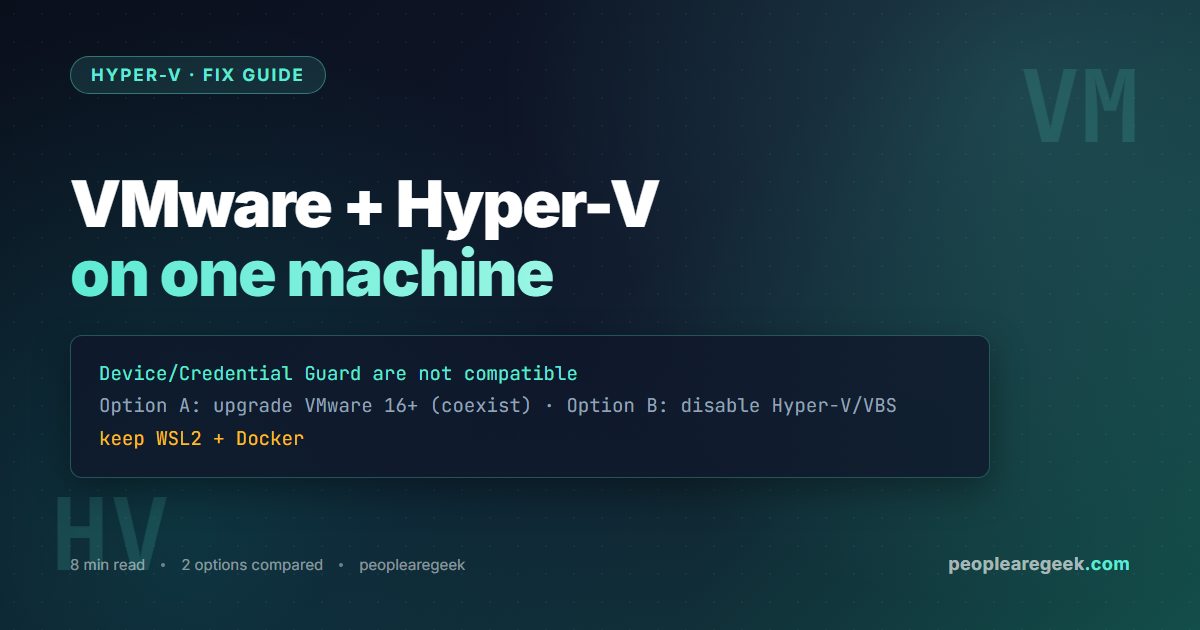
You launch VMware Workstation and it refuses to start a VM with: “VMware Workstation and Device/Credential Guard are not compatible. VMware Workstation can be run after disabling Device/Credential Guard.” Or VMware warns that it is running in a “degraded” mode. The root cause is simple: Hyper-V (or the Virtualization-Based Security built on it) has claimed the CPU’s virtualization extensions, and an older VMware build cannot share them. In 2026 you have two clean paths — and the right one for most people keeps Hyper-V on.
Contents
Why the conflict happens
Hyper-V is a Type-1 hypervisor that loads at boot and takes ownership of the CPU virtualization extensions (Intel VT-x, AMD-V). Windows features built on it — Virtualization-Based Security (VBS), which includes Core Isolation / Memory Integrity and Credential Guard — do the same. Older VMware Workstation (and VirtualBox below v6) expect exclusive, direct access to those extensions and detect that something else holds them, so they refuse to run or fall back to slow software emulation. It is not a bug; it is two hypervisors wanting the same hardware. The fix is to make them share, or to remove one from the equation.
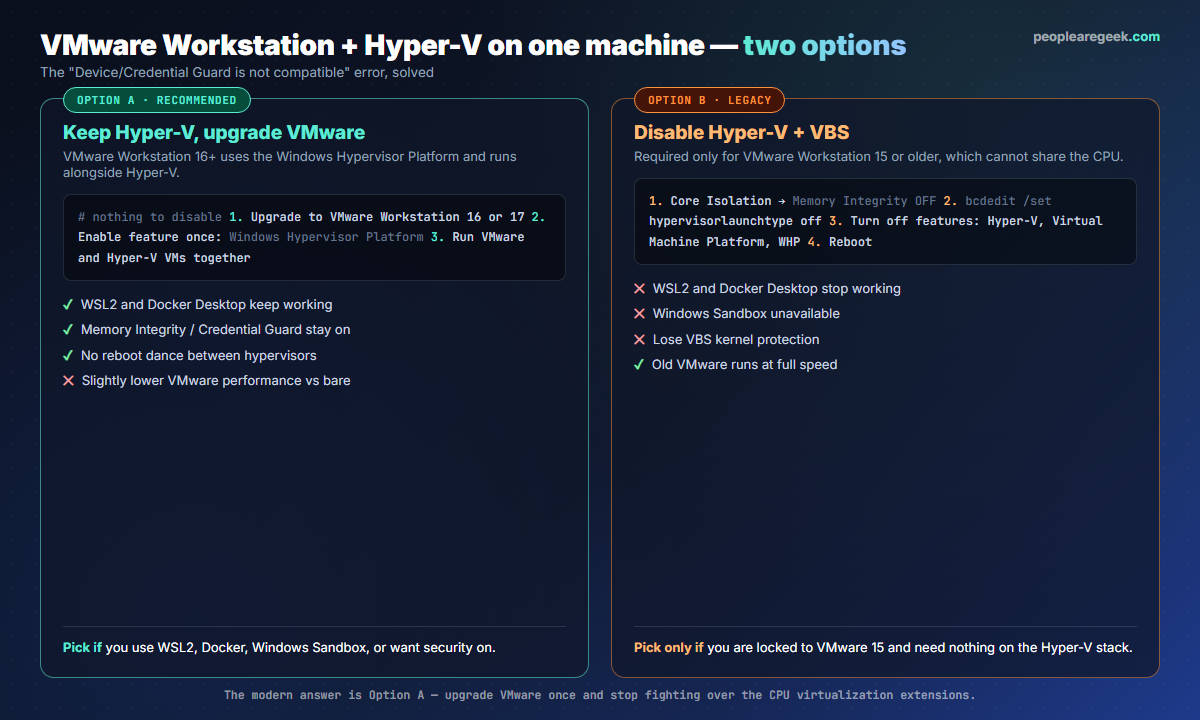
Option A: keep Hyper-V, upgrade VMware (recommended)
Since VMware Workstation 15.5.5, and fully from Workstation 16, VMware can run on top of the Windows Hypervisor Platform (WHP) instead of demanding the raw extensions. That means VMware and Hyper-V coexist, and you keep everything built on the Hyper-V stack.
- Upgrade to VMware Workstation 16 or 17 (Player or Pro). This single step resolves the incompatibility for most users.
- Make sure the platform feature is present (it usually is if Hyper-V or WSL2 is installed):
Enable-WindowsOptionalFeature -Online -FeatureName HypervisorPlatform -All
# WSL2/Docker also rely on this one:
Enable-WindowsOptionalFeature -Online -FeatureName VirtualMachinePlatform -All
Reboot, then start a VMware VM — it now runs alongside Hyper-V, WSL2 and Docker without complaint. The only trade-off is a small performance cost versus VMware on bare metal, which is invisible for typical desktop VMs.
Option B: disable Hyper-V and VBS (legacy)
Use this only when you are locked to VMware Workstation 15 or older and do not rely on WSL2, Docker Desktop, Windows Sandbox or VBS. You must clear both the hypervisor and Virtualization-Based Security, or VMware will still see the extensions held.
- Turn off Memory Integrity: Windows Security → Device security → Core isolation details → Memory Integrity = Off.
- Stop the hypervisor at boot:
bcdedit /set hypervisorlaunchtype off
- Turn off the Windows features in “Turn Windows features on or off” (or via DISM): Hyper-V, Virtual Machine Platform, Windows Hypervisor Platform, and Windows Sandbox.
Disable-WindowsOptionalFeature -Online -FeatureName Microsoft-Hyper-V-All -NoRestart
Disable-WindowsOptionalFeature -Online -FeatureName VirtualMachinePlatform -NoRestart
Disable-WindowsOptionalFeature -Online -FeatureName HypervisorPlatform -NoRestart
- Reboot. If Credential Guard was enforced by group policy or a registry key, you may also need to clear it; on enterprise machines check with your administrator.
After the reboot VMware 15 runs at full speed — but WSL2, Docker Desktop and Windows Sandbox will report that the platform is unavailable, because you just removed what they depend on.
How to turn Hyper-V back on
If you went down Option B and later need Hyper-V, WSL2 or Docker again, reverse it:
bcdedit /set hypervisorlaunchtype auto
Enable-WindowsOptionalFeature -Online -FeatureName Microsoft-Hyper-V -All
Enable-WindowsOptionalFeature -Online -FeatureName VirtualMachinePlatform -All
Reboot, re-enable Memory Integrity in Windows Security if you want it, and confirm the hypervisor loaded with Get-CimInstance Win32_ComputerSystem | Select HypervisorPresent. If a VM still will not start, work through the hypervisor is not running fix guide.
Which option should you pick?
| Your situation | Choose |
|---|---|
| You use WSL2, Docker Desktop or Windows Sandbox | Option A (upgrade VMware) |
| You want Memory Integrity / Credential Guard on | Option A |
| You run Hyper-V VMs as well as VMware | Option A |
| You are locked to VMware Workstation 15, need nothing on the Hyper-V stack | Option B |
| You need maximum VMware performance on bare metal and use only VMware | Option B |
For almost everyone in 2026 the answer is Option A: upgrade VMware once and stop choosing between hypervisors. Option B is a legacy escape hatch, not a target state.
FAQ
What exactly is Device/Credential Guard in this error?
It is Virtualization-Based Security: Windows features (Credential Guard, Core Isolation / Memory Integrity) that run inside a Hyper-V-backed secure region to protect credentials and kernel memory. They hold the CPU virtualization extensions, which is what older VMware collides with — the message names them as the thing to disable.
Will VMware run slower on the Windows Hypervisor Platform?
Marginally, because VMware goes through the WHP API rather than touching the hardware directly. For desktop VMs (a Linux dev box, a test Windows) the difference is not noticeable. For heavy nested virtualization or CPU-bound workloads you may see a few percent; that is the price of coexistence.
I disabled Hyper-V but VMware still complains. Why?
VBS can keep the extensions even with the Hyper-V role removed. Turn off Core Isolation Memory Integrity, run bcdedit /set hypervisorlaunchtype off, disable the Virtual Machine Platform and Windows Hypervisor Platform features, and reboot. On some machines a Credential Guard group policy re-enables it at boot.
Does this also affect VirtualBox?
Yes, the same conflict applies. VirtualBox 6 and later can use the Hyper-V backend automatically (you will see a small turtle icon indicating reduced performance). Updating VirtualBox is the equivalent of Option A; disabling Hyper-V is Option B.
Can I script switching between the two modes?
Yes. Create two boot entries: bcdedit /copy {current} /d "No Hyper-V", then set hypervisorlaunchtype off on that entry. You pick the mode at boot instead of toggling features each time. Memory Integrity still needs to be off in the no-Hyper-V scenario, though, which is not per-boot-entry.
Is it safe to leave Memory Integrity off?
It lowers protection against a class of driver-based kernel attacks. On a dedicated lab or developer machine that is an acceptable trade-off. On a daily-driver holding sensitive data, prefer Option A so you can keep Memory Integrity enabled.
Hit another Hyper-V error?
Search any Hyper-V code or message and get the cause plus the exact resolution steps in one searchable reference.


