Git rebase vs merge turns into a religious war in more than one standup, and honestly most of the heat comes from people picking one and using it for absolutely everything. Both are right, just for different jobs. So here is how I actually decide. The whole mental model fits in one paragraph, and then I walk five situations I hit basically every week. You get the branch diagram before and after, the exact commands I type, and what to do when a conflict blows up halfway through. By the end you reach for the right tool without thinking, and you know which one to push your team toward on any branch more than one person touches.
The short answer
Merge ties two branches with a two-parent commit and keeps the fork visible. Rebase lifts your commits and replays them on a fresh base for a straight line. Same code ships either way. The one rule that never bends: never rebase a branch more than one person pushes to.
The mental model in one paragraph
Merge preserves history. Rebase rewrites history. That's the whole thing, really. A merge ties two branches together with a new commit that has two parents, so you can always see exactly when the branch landed and what it looked like at that moment. A rebase does something sneakier. It lifts your commits off, replays them on top of a fresh base, and hands you a straight line that pretends you wrote the branch against today's main the whole time. Merge tells the truth about what actually happened. Rebase would rather tell you a cleaner story about where things ended up. Same working code ships either way. The difference only bites you six months later, when you're bisecting some nasty bug at 11 p.m. and your git log is either a readable timeline or a plate of spaghetti.
Visual: merge vs rebase, same input

Before (both)        After merge              After rebase

main:    A---B---C    main: A---B---C---M      main: A---B---C---X'---Y'
              \           \         /
feature:       X---Y       X-------Y            feature: (gone, fast-forwarded)

   M    = merge commit with two parents (B,Y)
   X'Y' = rebased copies with new SHAs
Scenario 1: solo feature branch, short-lived
Either works. It's your branch. Nobody else is on it, you've got a commit or two, and the PR gets reviewed and merged before lunch.
Rebase onto main first if you want a straight line. Or just hit the merge button and keep the branch context. On a small PR with a small team, I genuinely don't care which one, and I don't think you should either. Whatever your repo defaults to, use that. Don't waste a code review arguing about it.
# Either option, both fine
git checkout feature
git rebase main      # or just push and let GitHub merge

git checkout main
git merge feature # or "git merge --no-ff feature" if you want the commit graphScenario 2: long-lived feature branch with messy commits
Rebase wins. You've been living on this branch for two weeks. There are 14 commits, the messages read "wip" and "fix typo" and "actually fix it", and now you have to ship something a human can actually review.
Interactive rebase earns its keep right here. Squash all that noise down to one logical commit per concern and rewrite the messages so they say something. Then merge. Now your reviewer reads three commits that mean something instead of fourteen "wip"s. And the next person who bisects this code six months out lands on a real change instead of a typo fix. I do this on basically every long branch before it goes up, no exceptions.
git checkout feature
git rebase -i main
# In the editor:
#   pick   a1b2c3d  Implement core logic
#   squash e4f5g6h  wip
#   squash 1a2b3c4  fix typo
#   pick   5d6e7f8  Add tests
#   squash 9g0h1i2  actually fix it
# Save and write the cleaned commit messages.
Visual: 14 messy commits to 2 clean ones
Before After
A---B---C main A---B---C main
\ \
X1---X2---X3---X4 ... X1'---X2' feature (clean)
X14 feature "Core logic" "Tests"Scenario 3: pulling updates from main into your branch
Rebase wins. Main kept moving while you had your head down. Now you want your branch sitting on top of the latest.
Rebase here and your branch stays a clean line. None of those "Merge branch 'main' into feature" filler commits cluttering the place up. Merge main into your feature instead and you collect a merge commit for every single catch-up. They pile up in the PR diff and bury the three lines you actually changed under a heap of Git's bookkeeping. On a branch that's only mine, I rebase to catch up. Every time.
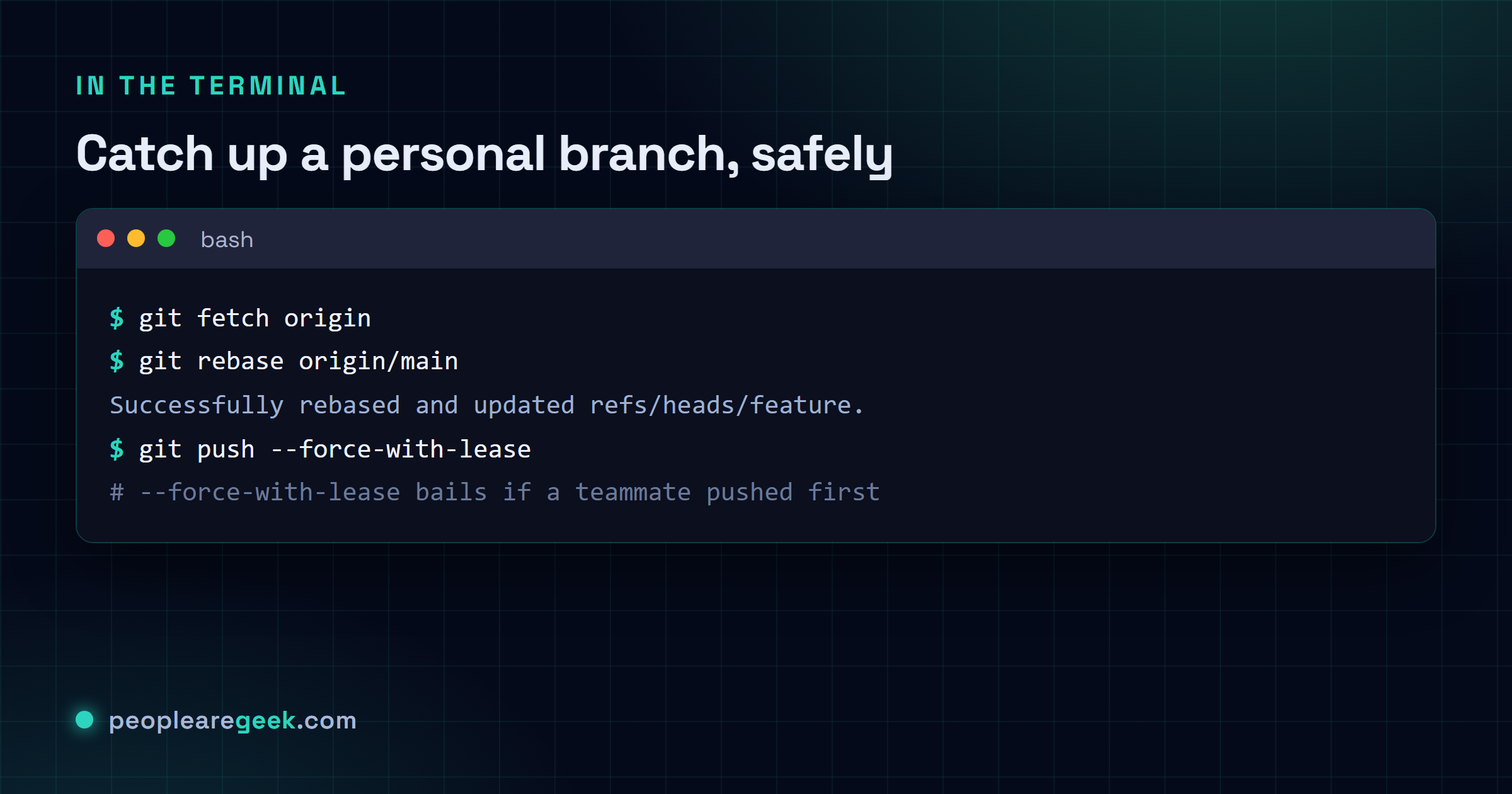
git checkout feature
git fetch origin
git rebase origin/main
# Resolve any conflicts (see the conflicts section)
git push --force-with-lease
Don't skip the --force-with-lease here. It checks the remote first and bails if someone else pushed to your branch since your last fetch, instead of blindly stomping their work the way plain --force does. I've trained my fingers to never type bare --force on anything shared. That one habit saved a teammate's whole afternoon of commits once, and I haven't gone back since.

Scenario 4: cleaning up before a pull request
Rebase and squash. The code's done. It works. But the history is a mess, and before you open the PR you want one tidy commit per logical change.
git checkout feature
git rebase -i origin/main
# Reorder, squash, edit messages to tell the story:
#   pick   <sha>  Refactor auth middleware
#   pick   <sha>  Add login rate limiting
#   pick   <sha>  Update auth tests
git push --force-with-lease
Now your reviewer opens three commits, each a self-contained change with a message that actually tells them what it does. Five minutes of rebasing buys you a history you can bisect cleanly later. Reviewers also tend to approve these PRs faster, in my experience anyway.
Scenario 5: collaborative branch with multiple authors
Merge wins. Two or three of you are pushing to the same feature branch at once.
This is the one rule I won't bend. Never rebase a shared branch. Here's why. Rebasing hands every commit a brand-new SHA, so the second you force-push, everyone else's clone is suddenly out of sync with a history that no longer exists. The next person to pull gets a fork in the road and a pile of duplicate commits, and the merge that untangles it fights them the whole way. So on a shared branch I merge main in and just live with the merge commits:
git checkout shared-feature
git fetch origin
git merge origin/main
# Resolve conflicts, commit, push (regular push, no force)
git push
Yeah, those merge commits are noise. I treat it as the price of nobody losing work, and it's a price I'll pay every time. It's not even noise that sticks around. When the branch is finally ready, whoever owns the merge squashes it down to a single clean commit on main, and the messy middle never makes it into main anyway.
Interactive rebase and squash, decoded
Run git rebase -i and Git drops you into an editor. A list of your commits, oldest at the top, a verb sitting in front of each. There's a handful of verbs available. In real life I only ever reach for these:
pick, leave this one alone. Keep it as-is.squash(ors), fold this commit up into the pick above it, mash the diffs together, then let you write one combined message.fixup(orf), like squash, except it throws away this commit's message and keeps the one above. My go-to for every "wip" and "fix typo" line.reword(orr), keep the commit and its changes. Just opens an editor so you can fix the message.drop(ord), nuke the commit entirely. Perfect for thatconsole.logyou swore you'd remove and then committed anyway.
Reordering costs nothing. Move a line up or down before you save and Git replays them in that order. The catch shows up when two commits you've shuffled touch the same lines. Then the replay stops on a conflict, you fix it, you carry on with git rebase --continue. Honestly this bites me more when I reorder than when I just squash, so I reorder with a little caution.
Conflict resolution in each mode
Merge conflicts
When Git can't auto-combine two changes, it stops and drops conflict markers into the files it choked on. You fix the files, git add them, then git commit to seal the merge. Git pre-fills the merge commit message for you. You're free to rewrite it, but most people just save it as-is, and that's totally fine.
Rebase conflicts
This is where rebase trips people up. Because it replays your commits one at a time, you can hit the same conflict over and over, once per commit that touches that code. The rhythm stays the same each time. Fix the files, git add, then git rebase --continue. The part that catches everyone: it's --continue, not commit. If it turns into a slog and you just want out, git rebase --abort drops you back exactly where you started, like none of it happened.
# During a rebase conflict:
# 1) Look at what is conflicting
git status

# 2) Edit the files, remove the conflict markers
# 3) Mark as resolved
git add path/to/file

# 4) Continue with the next commit
git rebase --continue

# Or bail out if it gets too messy
git rebase --abort
A team convention that actually works
Pick one of these two. Write it into your CONTRIBUTING file and stop relitigating it every single sprint. Both land you a clean history in the end. The choice is taste, not right-versus-wrong, and I'm fairly sure the team that just agrees on one beats the team still hunting for the "best" one.
Convention A: rebase for personal, merge for shared
- Your own branch: rebase onto main before the PR goes up. Force-push (with lease) as much as you like, it's yours.
- Merging the PR: squash-merge or rebase-merge from the GitHub/GitLab button, so main stays a straight line.
- Shared branch: merge main in, let the merge commits sit there, then squash-merge to main once it's done.
Convention B: always merge, never rebase
- Your own branch: leave history alone entirely. Need to catch up to main? Merge it in. Don't rebase.
- Merging the PR: plain merge with
--no-ff, so every branch shows up as its own bubble in the graph. - What you get: nobody ever loses a commit to a botched rebase. What it costs you: bisecting gets messier down the line.
Sources and further reading
Frequently asked questions
Can I rebase a branch that has already been pushed to a remote?
Yes, as long as it's only yours. Push it back up with git push --force-with-lease rather than bare --force, so Git refuses if someone else snuck a commit onto the branch behind your back. The second other people are pushing to that branch too, though? The answer flips to a hard no. Don't rebase it, merge instead. I've cleaned up after a rebased shared branch once, and it is not how you want to spend a Friday.
My rebase is in a mess and I want to bail out. How?
Breathe. This one's painless. Mid-rebase, whether you're in the interactive editor or knee-deep in conflicts, just run git rebase --abort. It rewinds the branch to exactly where it sat before you started. Your original commits never went anywhere, so nothing's lost. I bail out of rebases all the time and it has genuinely never cost me a thing.
What is the difference between squash-merge and rebase-merge in GitHub?
Squash-merge flattens the whole PR into one commit on main with a generated message, so a ten-commit PR lands as a single line in your log. Rebase-merge replays each of those commits onto main on its own and keeps the fine-grained history. My rule of thumb? Squash the little fix-up PRs nobody needs to see the guts of. Rebase the big features where each commit is a genuine step you'd actually want to read back later.
When do I use git pull versus git fetch then merge?
Same destination, really. git pull is just git fetch glued to git merge FETCH_HEAD under the hood. I tend to split them on purpose. Run git fetch, glance at what landed, then git rebase origin/main when I'm good and ready, so nothing integrates behind my back. If you'd rather have git pull rebase instead of merge every time, set git config --global pull.rebase true once and forget about it.
Will rebase break my tests?
It can, in a sneaky way. Your commits A, B and C might all be green on their own. But once A gets replayed on top of a main that's moved underneath it, the rebased A' is suddenly running against code it never saw, and that alone is enough to turn it red. So I re-run the suite after every rebase. No exceptions. Good news is CI usually does it for you the second you force-push, so you'll find out fast either way.