You opened this with a git mess on your screen and a half-typed command in your head. Maybe you committed to the wrong branch, or you want the staged-versus-unstaged thing to finally make sense. We keep the everyday commands here, the ones we run all day, grouped by what you are actually trying to do. Status, stage and commit first, then branches and switching, then the rescue moves: reset, restore, revert, stash, reflog. One thing to settle before you scroll. reset, restore and revert sound alike and do very different things, so the safe-versus-destructive split is called out on every recipe.
The short answer
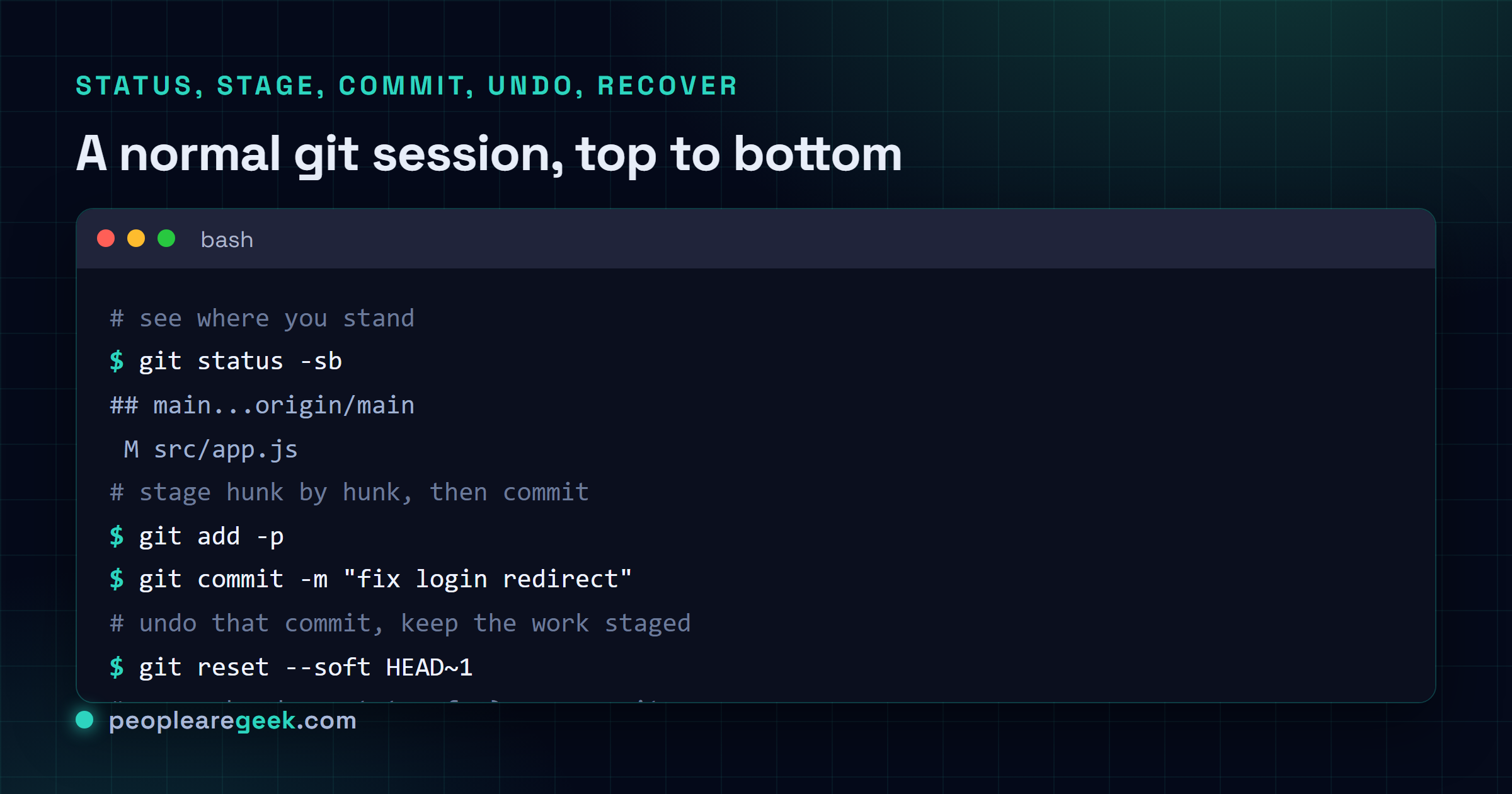
The commands we run all day, grouped by goal: git status -sb to see where you stand,
git add -p then git commit to stage in pieces, git switch -c feature for a new branch,
git reset --soft HEAD~1 to undo the last commit while keeping the changes, git stash to
park work, and git reflog when a bad reset eats a commit. restore is for files, reset is for
local history, revert is for anything already pushed.
You opened this with a git mess on your screen and a half-typed command in your head. Maybe you committed to the wrong branch, or the staged-versus-unstaged thing never quite clicked. The commands below are the ones we actually run all day, grouped by what you're trying to do, so you can copy, swap the branch or path, and get back to work.
One thing to settle before you scroll. reset, restore and revert sound nearly identical and do very different things. restore touches files, reset moves your branch, revert writes a new undo commit. We mark the destructive ones, the ones with no undo, on every recipe. When in doubt, run the read-only command first and look before you leap.
See where you stand: status and diff
Before you change anything, look. git status tells you what's staged, what's modified, and what branch you're on. The -sb flags give you the short, scannable version that fits on one screen. git diff shows the actual line changes, and the staged-versus-working split is the thing most people get wrong.
| Recipe | What it does |
|---|---|
git status -sb | The short status plus branch line, the one you run constantly |
git diff | Changes in your working tree that are not staged yet |
git diff --staged | Changes you have already staged, the ones a commit would capture |
git log --oneline -10 | The last 10 commits, one per line, for quick orientation |
git log --oneline --graph --all | The branch graph, so you can see how things diverged |
The split that trips everyone up: git diff with no flags shows only the unstaged stuff. Once you git add a change it vanishes from that view and moves to git diff --staged. So an empty git diff does not mean nothing changed, it can mean everything is already staged.
Stage and commit
Staging is the step people fight with most. git add moves changes into the index, the staging area that becomes your next commit. The trick worth learning is -p, which walks you through each change so you commit a clean, logical chunk instead of dumping everything at once.
| Recipe | What it does |
|---|---|
git add file.js | Stage one file for the next commit |
git add -p | Stage hunk by hunk, reviewing each change as you go |
git add -A | Stage everything, including new and deleted files |
git commit -m "message" | Commit the staged changes with a message |
git commit --amend | Fold staged changes into the last commit, or fix its message |
git commit --amend is the everyday fix for a typo in your last message or a file you forgot to include. One warning: amending rewrites the last commit, so only do it before you push. Amend something that's already on the remote and you'll be forcing a push and confusing anyone who pulled it.
Our take: learn
git add -pand your commit history gets readable overnight. Most messy histories come fromgit add -Afollowed by one giant commit that touches eight unrelated things. With-p, git shows you each hunk and asks: stage this? You answery,n, orsto split it smaller. The payoff is commits that each do one thing, which makesgit log,git blame, and the inevitablegit revertactually useful later. It feels slower for about a week, then it's just how you work, and code review stops being a slog for everyone reading after you.
Branches and switching
A branch is just a movable label pointing at a commit, nothing heavier than that. The modern verbs are git switch and git restore, which split the old overloaded git checkout into two clearer jobs. switch is for moving between branches, restore is for files. Use them and half the old confusion disappears.
| Recipe | What it does |
|---|---|
git switch main | Move to an existing branch named main |
git switch -c feature | Create a new branch and switch to it in one step |
git branch | List your local branches, current one starred |
git branch -d old-feature | Delete a merged branch (safe, refuses if unmerged) |
git branch -D old-feature | Force-delete a branch even if unmerged (no safety net) |
git merge feature | Merge feature into the branch you are currently on |
The -d versus -D distinction is a real safety rail. Lowercase -d refuses to delete a branch whose commits are not merged anywhere, so it protects you from throwing away work. Uppercase -D overrides that check. Reach for -D only when you are certain the branch is dead, not as a reflex when -d complains.
Undo and get out of trouble
This is the section you probably came for. The commands here split cleanly: restore fixes files, reset moves your branch, revert writes a safe undo commit, stash parks work, and reflog is the net under all of them. The bold ones below are destructive, meaning no undo, so read the note under the table before you run any --hard.
| Recipe | What it does |
|---|---|
git restore file.js | Discard unstaged edits to a file, back to last commit (destructive) |
git restore --staged file.js | Unstage a file but keep the edits (safe) |
git reset --soft HEAD~1 | Undo the last commit, keep changes staged (safe) |
git reset HEAD~1 | Undo the last commit, keep changes unstaged (safe) |
git reset --hard HEAD~1 | Undo the last commit and throw away the changes (destructive) |
git revert HEAD | Make a new commit that undoes the last one (safe, share-friendly) |
git stash | Park all uncommitted changes and clean the working tree |
git stash pop | Reapply the most recent stash and remove it from the list |
git reflog | Show every position HEAD has had, your recovery lifeline |
The one to internalize is the reset mode ladder. --soft moves the branch and leaves everything staged. The default --mixed moves the branch and unstages, but keeps your files. --hard moves the branch and wipes the working tree to match, with no prompt and no undo from git's normal commands. So "undo my commit but keep the work" is almost always --soft or plain reset, never --hard.
When you do mess up with a --hard or a deleted branch, git reflog is the answer almost every time. It records every commit HEAD ever pointed at, even ones no branch references anymore, and keeps them for about ninety days. Find the hash in the list, then bring it back:
# you hard-reset and lost a good commit, now recover it
git reflog                      # find the hash, e.g. 9f3c1a2 HEAD@{2}
git reset --hard 9f3c1a2        # jump the branch back to that commit
# or, to peek without moving your branch
git checkout 9f3c1a2
The stash flow is the clean way to carry uncommitted work to the right branch, or to clear your tree for a quick fix without committing half-done code:
git stash                       # park everything, working tree goes clean
git switch the-right-branch     # move where the work belongs
git stash pop                   # reapply it here, drop the stash entry
git stash list # see all stashes if you stacked severalgit reset --soft HEAD~1 For a pushed commit, the safe move is git revert, not reset. Reverting writes a brand-new commit that cancels out the old one, so history stays intact and nobody who already pulled gets a nasty surprise. Save reset for commits that live only on your machine. The line is simple: rewrite local history freely, never rewrite history that other people already have.
Remotes and sync
Remotes are just other copies of the repo, usually on a server like GitHub. fetch downloads their changes without touching your branches, pull does a fetch plus a merge, and push sends your commits up. Knowing that pull is really two steps explains most "why did this merge happen" surprises.
| Recipe | What it does |
|---|---|
git fetch | Download remote changes without merging anything yet |
git pull | Fetch and merge the remote branch into yours |
git pull --rebase | Fetch, then replay your commits on top, for a linear history |
git push | Send your commits to the remote |
git push -u origin feature | Push and set the upstream so plain push works next time |
git push --force-with-lease | Force-push safely, refusing if someone else pushed first |
A word on force-pushing, because it eats people's work. Never use a bare git push --force on a shared branch. Use --force-with-lease instead, which checks that the remote is still where you last saw it and aborts if a teammate pushed in the meantime. It turns the most dangerous git command into a merely risky one, which is the most you can ask of it.

Where to go from here
That's the working set. Status and diff to see where you are, add and commit to save work, switch and merge to move between lines of development, and the reset, restore, revert, stash and reflog group for the inevitable moment something goes sideways. Maybe ninety percent of real git is some mix of those, and the rest you look up like everyone else.
The instinct that matters most is the safe-versus-destructive one. Run the read-only command first, status or diff or a bare reflog, before you reach for anything with --hard or --force. And remember the net: as long as you committed something at some point, git reflog can usually find it again, even when it feels gone for good. Keep a good cheatsheet nearby and stop trying to memorize the whole thing.
Frequently asked questions
How do I undo the last git commit but keep my changes?
Run git reset --soft HEAD~1. That moves the branch back one commit and leaves every change staged, ready to recommit with a better message or a different split. Use git reset HEAD~1 (the default mixed mode) instead if you want the changes back as unstaged edits. Avoid git reset --hard HEAD~1 unless you truly want those changes gone, because hard discards your working tree with no prompt.
What is the difference between git reset, git revert and git restore?
They solve three different problems. git restore changes files in your working tree or unstages them, and never touches history. git reset moves the current branch to another commit, optionally changing the index and working tree with it. git revert creates a new commit that undoes an earlier one, which is the safe choice on a shared branch because it rewrites nothing. Rule of thumb: restore for files, reset for local history, revert for anything already pushed.
How do I move uncommitted changes to a different branch?
Stash them, switch, then pop. Run git stash, then git switch the-right-branch, then git stash pop. The pop reapplies your changes on the new branch and drops the stash entry. If you only want to carry specific files, stash with git stash push path/to/file first. A stash is just a saved snapshot of your working tree, so nothing is lost while it sits there.
How do I recover a commit I lost after a bad reset?
Use git reflog. It logs every position HEAD has pointed to, including commits that no branch references anymore, so a hard reset or a deleted branch is almost never the end. Find the hash in the reflog list, then git reset --hard <hash> or git checkout <hash> to get back to it. Reflog entries stick around for about ninety days by default, which is plenty of time to undo most accidents.
How do I discard local changes to a single file?
Run git restore path/to/file to throw away unstaged edits and bring the file back to the last commit. There is no undo on this, so be sure you do not want those edits first. To only unstage a file while keeping the edits, run git restore --staged path/to/file instead, which is the modern replacement for the old git reset HEAD file form.