You came here to remember a Docker command you use every week and keep half-forgetting. How to run a container, list what is running, follow logs, get a shell inside, or reclaim the disk that Docker quietly ate. The everyday commands are below, grouped by what you are actually trying to do, so you can copy one, swap the image or container name, and get back to work. We keep the dangerous ones (rm, prune) clearly marked, because Docker deletes without asking and there is no undo. No deep dive into layers or namespaces here, just the recipes you reach for at the terminal.
The short answer
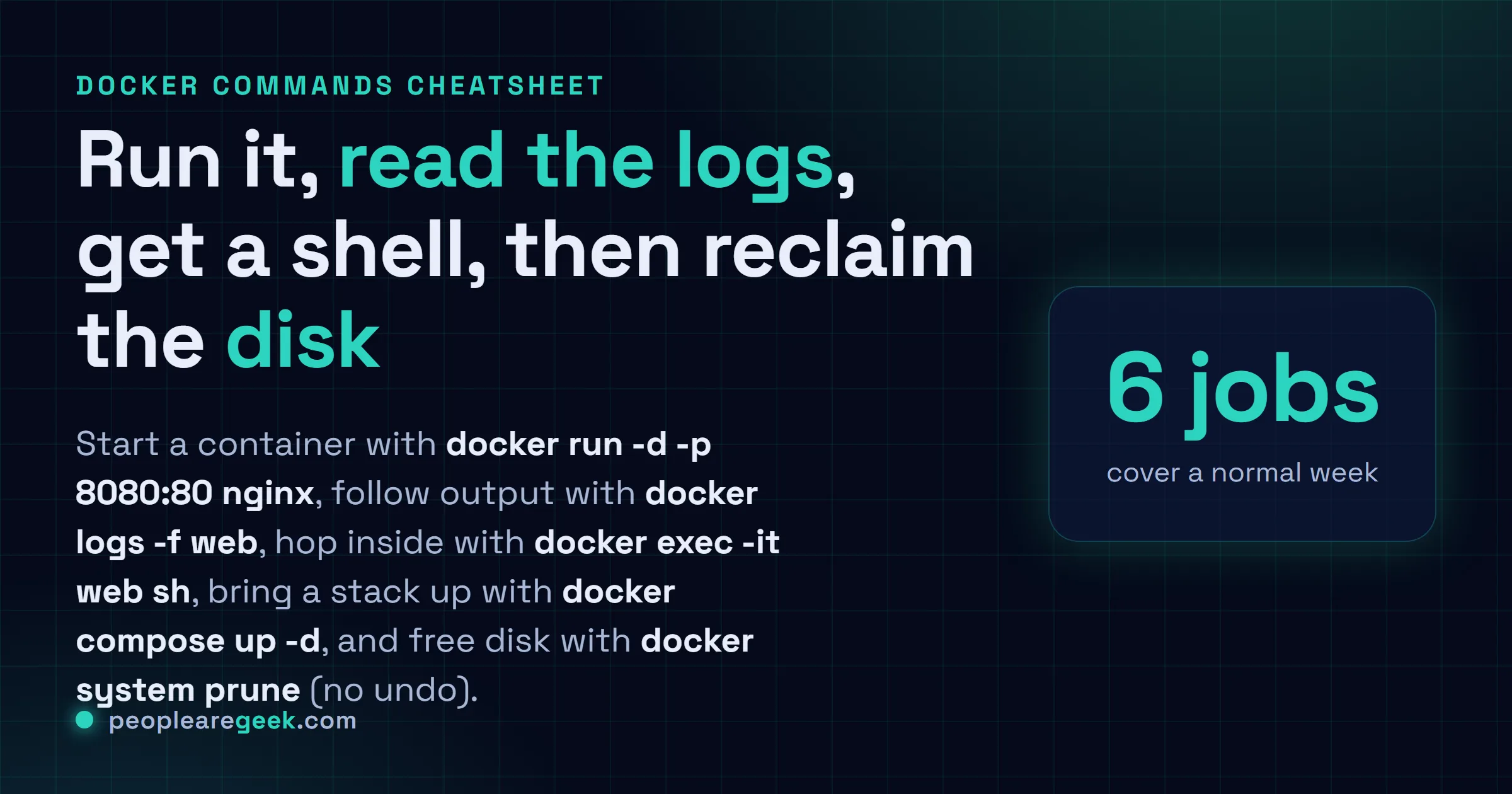
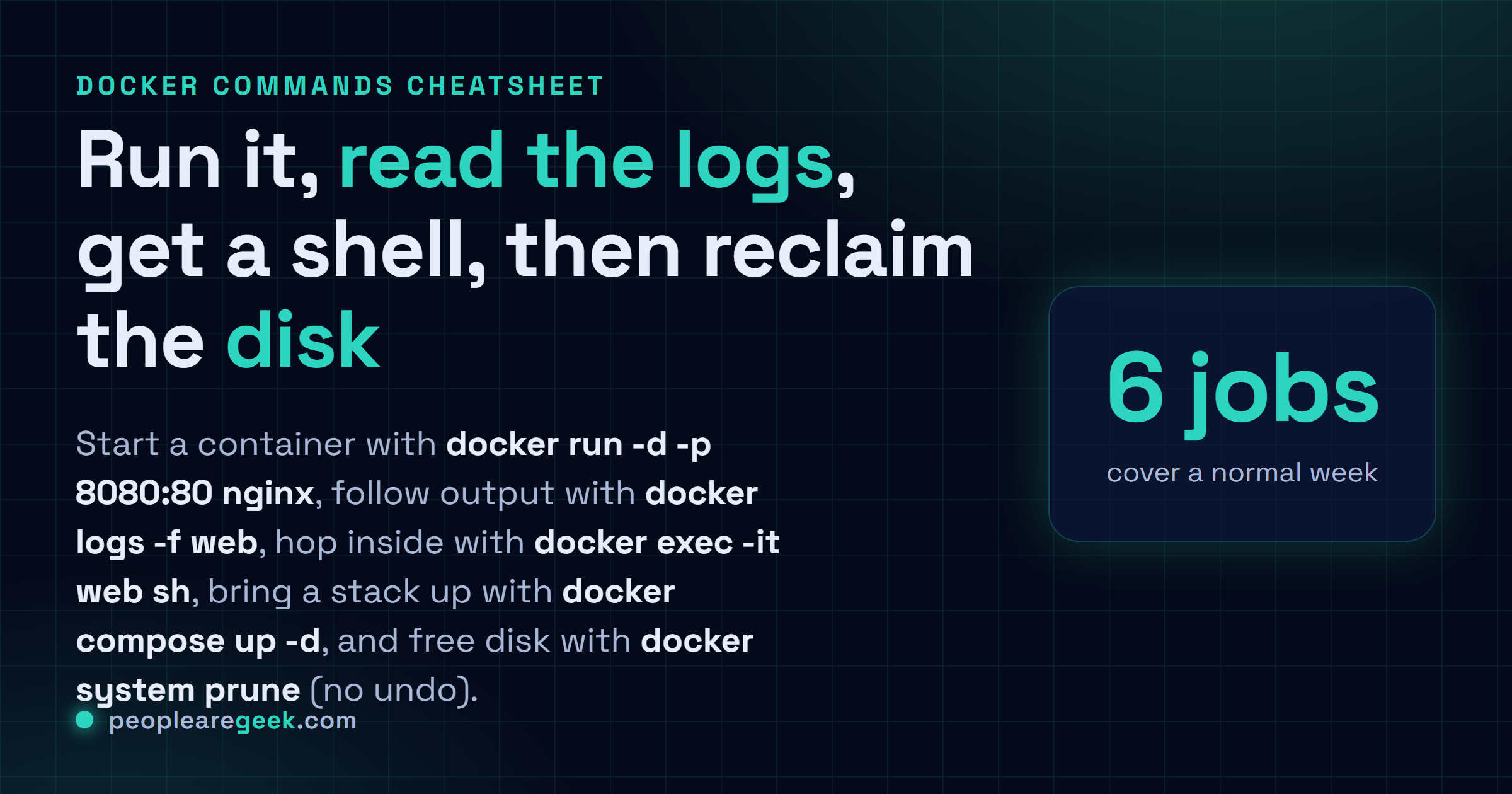
The everyday commands, fast: docker run -d -p 8080:80 nginx to start a container,
docker ps to see what is running, docker logs -f web to follow output, docker exec -it web sh
for a shell inside, docker compose up -d to bring a whole stack up, and docker system prune
to reclaim the disk Docker quietly filled (no undo, so read it first).
You came here to remember a Docker command you use every week and keep half-forgetting. How to run a container, list what is running, follow the logs, get a shell inside, or reclaim the disk that Docker quietly ate. The everyday commands are below, grouped by what you are actually trying to do, so you can copy one, swap the image or container name, and get back to work.
One thing worth saying up front. Two of these (rm and prune) delete things with no confirmation and no undo. We mark those clearly. Everything else is safe to try on a throwaway container.
Run and manage containers
The starting point. docker run pulls the image if you do not have it, creates a container, and starts it. The flags you reach for most: -d to run in the background, --name to give it a handle, -p to publish a port, and --rm to auto-delete it on exit.
| Recipe | What it does |
|---|---|
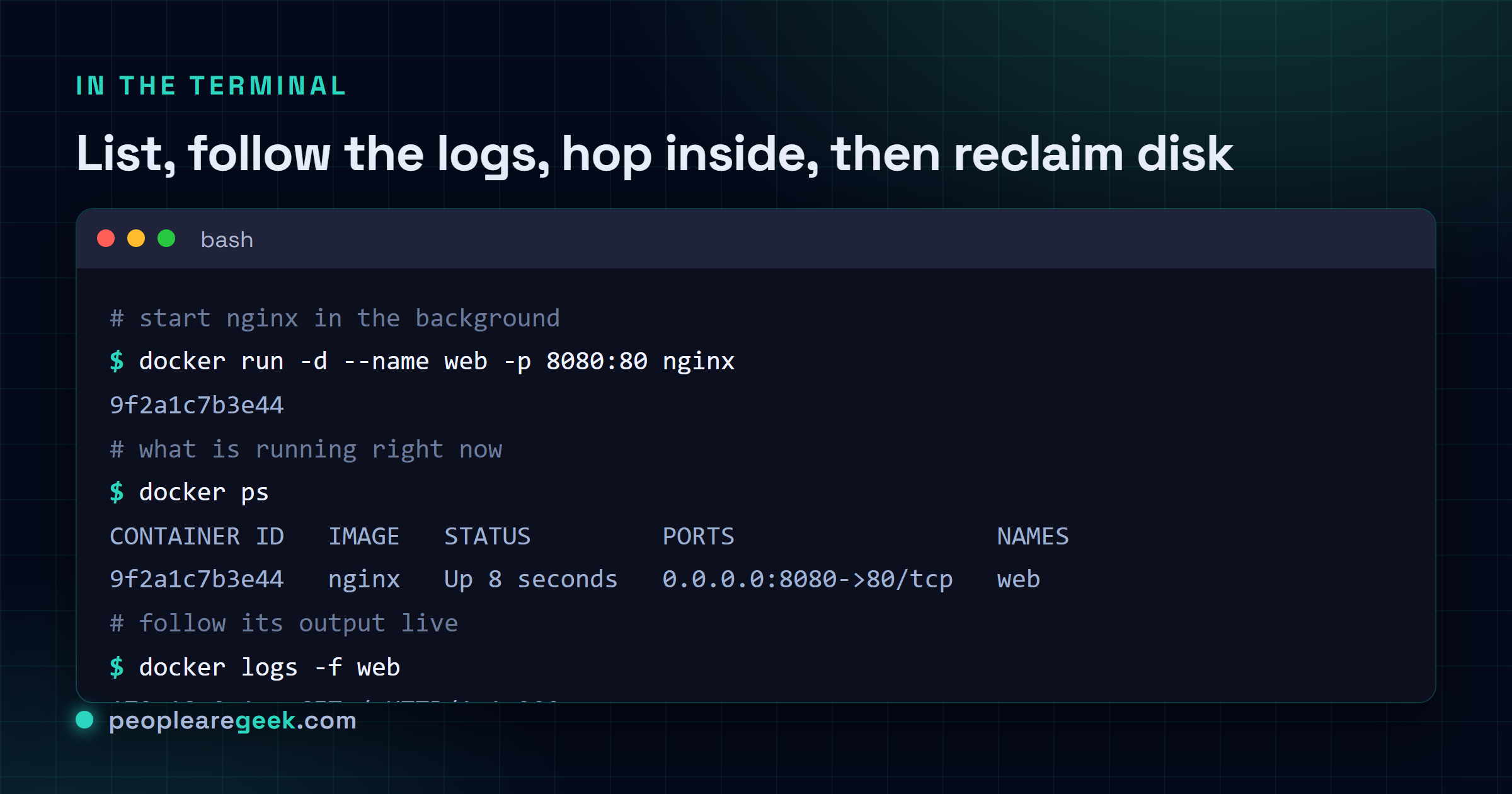
docker run -d --name web -p 8080:80 nginx | Start nginx in the background, reachable on host port 8080 |
docker run -it --rm alpine sh | A throwaway shell that deletes itself when you exit |
docker ps | List running containers |
docker ps -a | List all containers, including stopped ones |
docker stop web | Stop a container but keep it (restart later) |
docker start web | Start a previously stopped container again |
docker rm web | Delete a stopped container (add -f to force a running one) |
That -p 8080:80 reads as host:container, so traffic to port 8080 on your machine reaches port 80 inside. Get them backwards and you will spend ten minutes wondering why the page will not load. To wipe every stopped container in one go:
# remove all stopped containers at once
docker rm $(docker ps -aq)
Images: pull, list, build, remove
Containers run from images, and images pile up. docker images shows what you have, docker pull grabs a new one, and docker rmi removes one you no longer need. Note that removing a container does not remove its image, that is a separate step.
| Recipe | What it does |
|---|---|
docker pull postgres:16 | Download the postgres 16 image (or a specific tag) |
docker images | List local images with their sizes |
docker build -t myapp:1.0 . | Build an image from the Dockerfile in the current folder |
docker rmi myapp:1.0 | Delete a single image by name and tag |
docker tag myapp:1.0 myapp:latest | Add a second tag to the same image |
Pin the tag (postgres:16, not bare postgres) so a rebuild next month does not silently pull a newer major version and surprise you. The bare name resolves to :latest, which moves under your feet.
Docker compose: up, down, logs
When an app is more than one container (an API plus a database plus a cache), you describe it once in compose.yaml and drive the whole thing with docker compose. Run these from the folder holding the file.
| Recipe | What it does |
|---|---|
docker compose up -d | Create and start the whole stack in the background |
docker compose up | Same, but in the foreground with all logs streaming (Ctrl+C stops it) |
docker compose down | Stop and remove the stack (containers and network) |
docker compose down -v | Same, but also delete the volumes (wipes the data) |
docker compose ps | List the services in this project and their state |
docker compose logs -f api | Follow the logs of one service |
docker compose restart api | Restart a single service without touching the rest |
The foreground versus background choice is the one people trip on. docker compose up is great while you build, because every log lands in your terminal and Ctrl+C tears the stack down cleanly. Once it works, switch to up -d so it survives you closing the window. After editing compose.yaml, re-run up -d and Docker recreates only the services that changed.
# rebuild images, then bring the stack up in the background
docker compose up -d --build
Note: on older installs the command is the hyphenated docker-compose (the standalone v1 binary). Modern Docker ships it as the docker compose subcommand, which is what we use throughout.
Exec into a container
Sometimes you need to be inside a running container, to check a config file, run a one-off query, or see why a process is unhappy. docker exec runs a command in a container that is already up.
| Recipe | What it does |
|---|---|
docker exec -it web bash | Open an interactive bash shell inside the running container |
docker exec -it web sh | Same when the image has no bash (Alpine, distroless-ish) |
docker exec web env | Run a single command (here, print env vars) and exit |
docker exec -it -u root web sh | Get in as root when the default user is unprivileged |
docker exec -it web sh The -it is the part to remember: -i keeps input open, -t gives you a proper terminal, and without both your shell feels broken (no prompt, no echo). Reach for sh first on small images, because many slim and Alpine-based images ship without bash and exec ... bash just errors with "executable file not found".
Logs and inspect
When something misbehaves, the logs and the container's own metadata tell the story. docker logs replays what a container printed, and docker inspect dumps its full configuration as JSON.
| Recipe | What it does |
|---|---|
docker logs web | Print everything the container has logged so far |
docker logs -f web | Follow new log lines live (like tail -f) |
docker logs --tail 100 web | Just the last 100 lines, not the whole history |
docker logs --since 10m web | Only lines from the last 10 minutes |
docker inspect web | Full JSON config: mounts, env, network, restart policy |
docker stats | Live CPU, memory and I/O per container |
For a noisy container, combine the flags: docker logs -f --tail 50 web shows the recent context and then streams new lines, which is usually what you want when chasing an intermittent error. To pull one field out of inspect instead of reading the whole blob:
# get just the container's IP address
docker inspect -f '{{ .NetworkSettings.IPAddress }}' web
Prune and clean up disk
Docker is generous with disk. Stopped containers, old images, dangling build layers and orphaned volumes accumulate until df looks alarming. Start by measuring, then prune deliberately.
| Recipe | What it does |
|---|---|
docker system df | Show how much space images, containers and volumes use |
docker image prune | Remove dangling images (untagged leftovers) |
docker image prune -a | Remove every image not used by a container (aggressive) |
docker container prune | Remove all stopped containers |
docker system prune | Containers, networks and dangling images in one sweep |
docker system prune -a --volumes | The deep clean: also unused images and volumes |
docker volume prune | Remove unused volumes (danger: this is your data) |
Run docker system df first, every time, so you know what you are about to remove. The one to handle with care is anything that touches volumes. Containers and images you can always recreate, but a volume holds the database, the uploads, the state, and volume prune deletes it with no recovery. When in doubt, prune images and containers, and leave volumes alone unless you are certain they are orphaned.

Our take: measure with
docker system dfbefore you prune, and nevervolume pruneon reflex. The everyday loop isrunto start something,psto confirm it,logs -fwhen it misbehaves,exec -itto poke around inside, andcompose up -donce an app outgrows a single container. That covers almost everything. The trap is disk cleanup.docker system prune -ais a fine reflex on a build box, but the same muscle memory applied with--volumeson a server quietly deletes a database. So we always rundocker system dffirst to see what is actually taking the space, prune images and stopped containers freely, and treat volumes as off-limits unless we have checked exactly which one is orphaned. Two seconds of reading beats a restore you may not have.
Where to go from here
That is the working set. Run and manage containers, handle images, drive a stack with compose, exec in for a look, read the logs, and prune the disk back down. Most days are some mix of those six, and the rest you look up like everyone else.
If the container is running but the app inside is still down, the same instinct carries over to the host. Check that the published port is actually listening with the Linux networking commands and ip and ss, and if a service unit wraps your Docker setup, the systemctl and journalctl cheatsheet covers reading why it failed to start. Different layer, same habit: stop memorizing, keep a good cheatsheet nearby.
Frequently asked questions
How do I run a Docker container in the background?
Use docker run -d, as in docker run -d --name web -p 8080:80 nginx. The -d flag (detached) starts the container and gives you the prompt back instead of attaching to its output. The --name sets a friendly handle so you do not have to copy the container ID, and -p 8080:80 maps host port 8080 to the container port 80. Check it is up with docker ps, then follow its output with docker logs -f web.
What is the difference between docker stop and docker rm?
docker stop halts a running container but keeps it around, so you can start it again with docker start and its name still appears in docker ps -a. docker rm deletes the container record entirely, which only works once it is stopped (or add -f to force it). A common cleanup is docker rm $(docker ps -aq) to remove every stopped container at once. Removing a container does not delete the image it ran from, that is a separate docker rmi.
How do I get a shell inside a running container?
Run docker exec -it CONTAINER bash, or docker exec -it CONTAINER sh if the image has no bash (Alpine-based images usually do not). The -it pair gives you an interactive terminal, -i keeps stdin open and -t allocates a TTY. This drops you inside the running container to inspect files or test something. Use docker run -it --rm image sh instead when you want a throwaway container that deletes itself on exit.
How do I free up disk space used by Docker?
Start with docker system df to see what is using space, then docker image prune to drop dangling (untagged) images. For a deeper clean, docker system prune removes stopped containers, unused networks and dangling images in one shot, and adding -a also removes any image not currently used by a container. Be careful with docker volume prune, because volumes hold your data (databases, uploads) and a deleted volume is gone for good.
What is the difference between docker compose up and docker compose up -d?
Both read your compose.yaml and create the services in it. Plain docker compose up runs in the foreground and streams every container log into your terminal, which is handy while you are debugging because Ctrl+C stops the whole stack. Adding -d (detached) starts everything in the background and returns your prompt, which is what you want for anything you intend to leave running. Either way, docker compose down stops and removes the stack when you are done.