This dig and nslookup cheatsheet puts the DNS queries you actually run first: dig A, AAAA, MX, TXT, NS and CNAME records, trim the noise to one answer with dig +short, follow the chain from the root with +trace, ask a specific resolver with @8.8.8.8, and do a reverse lookup with dig -x on an IP. We grouped these by what you are checking, not by alphabetical flag order, so you copy a line, swap the domain, and move on. nslookup gets its own section near the end, because on Windows it is often the only one installed, and the syntax is just different enough to trip you up.
The short answer
Query a record type by naming it: dig example.com MX, dig example.com TXT,
dig example.com NS. Trim the report to the answer with +short, follow the
delegation from the root with +trace, ask a public resolver with @8.8.8.8,
and reverse a PTR with dig -x 8.8.8.8. On Windows, nslookup -type=MX example.com
covers the same ground when dig is not installed.

You opened a terminal because something is resolving wrong, or not resolving at all, and you want the truth straight from DNS instead of whatever your browser cached an hour ago. That is what dig is for. It asks a name server a precise question and prints exactly what came back. The recipes below are the ones we reach for daily, the most common first, so you can copy a line, swap in your domain, and see what the records really say.
One thing to settle up front. dig queries DNS and nothing else: it does not read your hosts file, it does not care about your browser, it just talks to a resolver and reports the response verbatim. That is the whole point. When ping and dig disagree, dig is telling you what the DNS layer actually holds, and the gap is usually a stale local cache.
dig basics: A, AAAA, MX, TXT, NS, CNAME
The core pattern is dig DOMAIN TYPE. Name the record type you want after the domain. Leave the type off and dig defaults to A, the IPv4 address. Everything else is just picking the right type for the question you are asking.
| Recipe | What it does |
|---|---|
dig example.com | The A record (IPv4 address), the default when you name no type |
dig example.com AAAA | The AAAA record, the IPv6 address |
dig example.com MX | The mail servers and their priorities, lowest number wins |
dig example.com TXT | Text records: SPF, DKIM, domain verification strings |
dig example.com NS | The name servers that are authoritative for the zone |
dig example.com CNAME | The alias target, if this name points at another name |
The full dig output is a report, not a single line. It echoes your question, then the ANSWER SECTION holds the records you wanted, and below that come authority and additional sections you can usually ignore. Most of the time you do not want the report, you want the answer, which is the next recipe.
Trim the noise: +short and +trace
Two options change how much you see. +short collapses the report down to just the answer values. +trace does the opposite: it walks the delegation from the root servers down, showing every hop, which is how you find where resolution actually breaks.
| Recipe | What it does |
|---|---|
dig example.com +short | Just the answer value(s), one per line, nothing else |
dig example.com MX +short | The mail servers only, clean enough to pipe into a script |
dig example.com +trace | Walk the delegation from the root, hop by hop |
dig example.com +noall +answer | Keep the report format but show only the answer section |
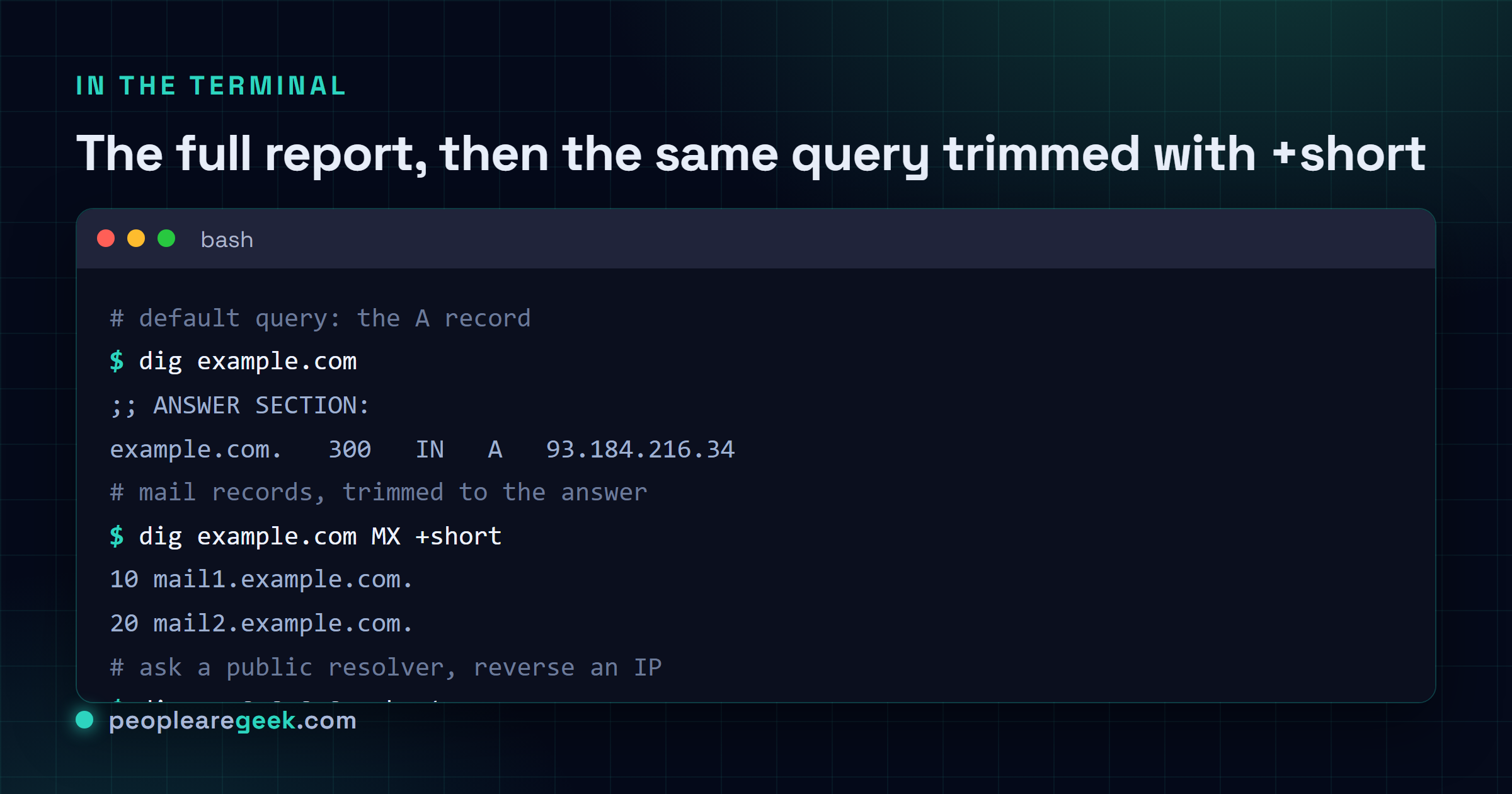
+short is the one you will type most. Compare dig example.com (a dozen lines) with dig example.com +short (the bare IP) and you will never go back. Reach for +trace when a name resolves on one network but not another: it shows you exactly which name server in the chain hands back the wrong answer or times out.
dig example.com MX +short Ask a specific resolver: @8.8.8.8
By default dig uses the resolver in your system config (/etc/resolv.conf on Linux). Put an @ in front of an IP or hostname to ask that server directly instead. This is the single most useful trick for propagation checks, because your local cache and a public resolver can hold different answers for the same name at the same time.
| Recipe | What it does |
|---|---|
dig @8.8.8.8 example.com | Ask Google Public DNS directly, bypassing your local cache |
dig @1.1.1.1 example.com | Ask Cloudflare instead, a quick second opinion |
dig @ns1.example.com example.com | Ask the authoritative name server, the source of truth |
dig @8.8.8.8 example.com +short | Same, trimmed to the answer for a fast compare |
When you change a record at your registrar and want to know if it has gone live, query a public resolver this way rather than trusting your own machine. If @8.8.8.8 already shows the new value and your local lookup still shows the old one, the record is fine and you are just waiting on your own cache to expire. Our on-site DNS lookup tool runs this same kind of resolver query from the browser when you are not at a terminal.
Reverse lookup: dig -x
A normal lookup goes name to IP. A reverse lookup goes IP to name, reading the PTR record. dig -x takes the address and builds the awkward in-addr.arpa query for you, so you never reverse the octets by hand.
| Recipe | What it does |
|---|---|
dig -x 8.8.8.8 | The PTR record (hostname) for that IPv4 address |
dig -x 8.8.8.8 +short | Just the name, no report |
dig -x 2001:4860:4860::8888 | Reverse lookup works for IPv6 too |
Reverse records are controlled by whoever owns the IP block, not by the domain owner, so plenty of addresses have no PTR at all. An empty answer is normal and not an error. Where it matters most is mail: receiving servers often check that a sending IP has a matching forward and reverse record, so a missing or mismatched PTR is a common reason legitimate mail lands in spam.
nslookup: the Windows fallback
nslookup ships on every Windows box and on most Linux installs too. dig does not come with Windows by default. So when you are on a locked-down Windows machine with nothing installed, nslookup is the tool you have, and it is perfectly fine for a quick check. The syntax differs from dig in two ways: you select the record type with -type= (or -q=), and you name the server after the domain, not with an @.
| dig | nslookup equivalent |
|---|---|
dig example.com | nslookup example.com |
dig example.com MX | nslookup -type=MX example.com |
dig example.com TXT | nslookup -type=TXT example.com |
dig example.com NS | nslookup -type=NS example.com |
dig @8.8.8.8 example.com | nslookup example.com 8.8.8.8 |
dig -x 8.8.8.8 | nslookup 8.8.8.8 |
nslookup -type=MX example.com
nslookup -type=TXT example.com 8.8.8.8
nslookup 8.8.8.8
One quirk to expect: nslookup labels results it pulls from a cache as a Non-authoritative answer, which sounds alarming but just means the response came from a recursive resolver rather than the authoritative server. That is the normal case and nothing to worry about. The output is also chattier and harder to script than dig +short, which is the main reason dig won on Linux and macOS.

Our take: learn dig, keep nslookup for the machine where nothing else is installed. For everyday checks
dig +shortanddig @resolver domainanswer almost everything, and the output drops straight into a script without parsing gymnastics.nslookupearns its place for exactly one reason, it is already there on Windows, so when you cannot install anything it gets the job done. If you move between systems, install the BIND tools on Windows so you havedigeverywhere, and treatnslookupas the fallback rather than the default.
Where to go from here
That is the working set. Pick the record type, trim with +short, point at a resolver with @, reverse with -x, and reach for nslookup only when dig is not on the box. Most real DNS debugging is some mix of those, and the rest you look up like everyone else.
If the records you are reading are mail-related, the same habit carries straight over. Checking why messages bounce or land in spam usually starts with a dig TXT for the SPF record and a dig at the DKIM selector, then a reverse lookup on the sending IP. Different question, same three or four commands, kept close at hand.
Frequently asked questions
How do I look up a record type with dig?
Put the type after the domain: dig example.com MX returns the mail records, dig example.com TXT the text records, dig example.com NS the name servers. With no type, dig defaults to A (the IPv4 address). Add +short to cut the full report down to just the answer values, which is what you usually want when you are eyeballing a result rather than debugging the whole response.
What does dig +short do?
It strips the verbose report (header, question, authority and additional sections) and prints only the answer data, one value per line. So dig example.com +short gives you the bare IP, and dig example.com MX +short gives you the mail servers with their priorities and nothing else. It is the difference between a wall of text and the one line you came for, and it pipes cleanly into scripts.
How do I query a specific DNS server like 8.8.8.8?
Prefix the resolver with an @ sign: dig @8.8.8.8 example.com asks Google Public DNS directly instead of your system resolver. This is how you check whether a record has propagated, since your local cache may still hold the old value while a public resolver already sees the new one. Works the same with @1.1.1.1 for Cloudflare or @ any authoritative name server you want to ask.
How do I do a reverse DNS lookup?
Use dig -x with the IP address: dig -x 8.8.8.8 returns the PTR record, the hostname mapped to that address. dig builds the in-addr.arpa query for you, so you do not have to reverse the octets by hand. Add +short to get just the name. Reverse records are set by whoever controls the IP block, so plenty of addresses have no PTR at all, and an empty answer there is normal.
Should I use dig or nslookup on Windows?
nslookup ships with Windows, dig does not, so nslookup is the one that is always there. For a quick check it is fine: nslookup example.com, or nslookup -type=MX example.com for a record type. But dig gives cleaner, more scriptable output and is the standard on Linux and macOS. If you work across systems, learn dig and install it on Windows (it comes with the BIND tools); keep nslookup for the machine where nothing else is available.